
Follow Me On Social Media!



A while ago I was helping a friend set up a small website for their photography business. The site looked clean and professional, but something felt missing. They were posting beautiful photos on Instagram almost every day, yet none of those images appeared on the website.
Every visitor had to leave the website just to see their latest work.
That’s when we started looking for a way to display Instagram posts directly on the site. Instead of manually embedding each photo, we discovered Instagram feed plugins that automatically show your latest posts on WordPress.
The idea is simple: connect your Instagram account, install a plugin, and your website updates itself whenever you publish new content on Instagram.
However, once you start searching for plugins, you’ll notice there are many options available. Some are lightweight and simple, while others include advanced layouts, galleries, and marketing features.
In this guide, we’ll look at some of the best Instagram feed widgets for WordPress, compare their features, and help you choose the right plugin for your website.
Table of Contents
Why Add an Instagram Feed to WordPress?
Before jumping into plugins, it’s worth understanding why so many website owners add Instagram feeds to their sites.
Displaying your Instagram content on your website can help in several ways.
1. Your website feels more active
A live Instagram feed shows visitors that your brand is active and regularly sharing content.
2. You showcase visual content
Instagram photos, reels, and videos make websites more engaging compared to plain text.
3. It can increase followers
Visitors who like your website may decide to follow your Instagram account.
4. You avoid duplicate work
Instead of uploading images twice (website + Instagram), your posts automatically appear on your site.
Quick Comparison Table
Here’s a quick overview of some popular Instagram feed plugins for WordPress.
| Plugin | Free Version | Best For | Starting Price |
|---|---|---|---|
| Social Feed Widget | Yes | Lightweight websites | Free / Pro |
| Smash Balloon Instagram Feed | Yes | Advanced customization | $49/year |
| Spotlight Social Feeds | Yes | Beginners | $39/year |
| 10Web Instagram Feed | Yes | Visual galleries | $30/year |
| Feed Them Social | Yes | Multiple social networks | $50/year |
Each plugin has its own advantages depending on the type of website you run.
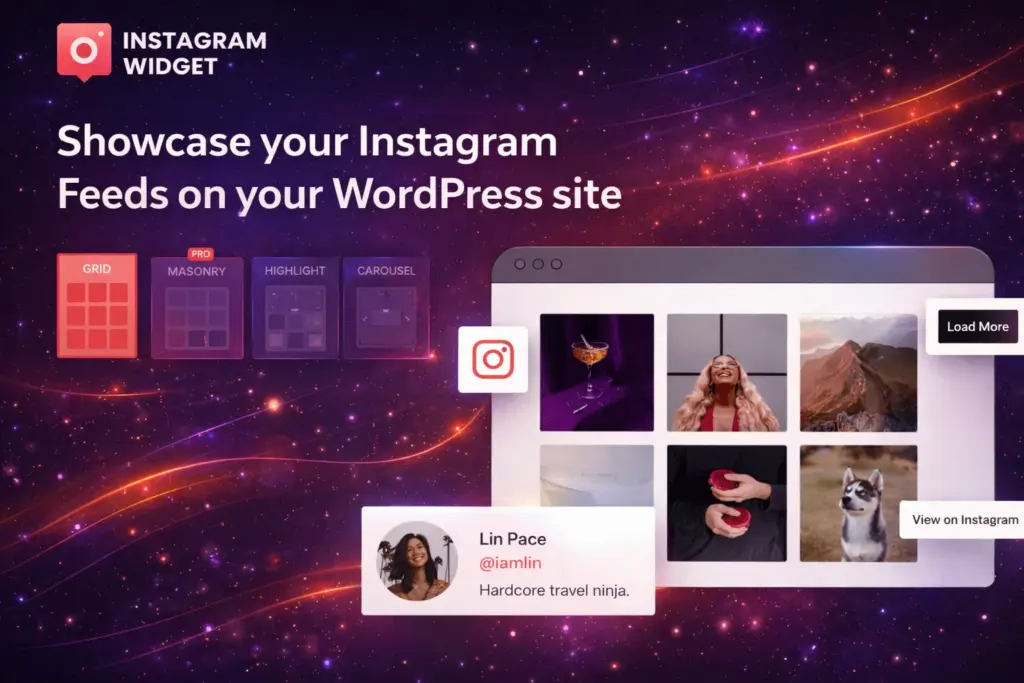
1. Social Feed Widget & Block
Social Feed Widget is one of the simplest ways to display Instagram posts on a WordPress website.
It integrates directly with the WordPress block editor, meaning you can add your Instagram feed anywhere on your website without complicated settings.
Key Features
- Displays Instagram photos and videos
- WordPress block editor support
- Elementor compatibility
- Lightweight and optimized for speed
- Responsive grid layouts
The plugin focuses on performance, which means it loads quickly and avoids heavy scripts.
Example Shortcode
[instagram-feed]
You can place this shortcode inside posts, pages, or widgets to display your Instagram feed.
Pricing
| Version | Price |
|---|---|
| Free Version | $0 |
| Pro Version | Around $49/year |
Best For
- Bloggers
- Small business websites
- Sites that prioritize speed
2. Smash Balloon Instagram Feed
Smash Balloon is one of the most widely used Instagram feed plugins in the WordPress ecosystem.
It allows you to create highly customizable Instagram feeds with different layouts and display options.

Key Features
- Multiple feed layouts
- Hashtag feeds
- Instagram stories integration
- Custom feed styling
- Load more button support
You can create feeds that match your website design without needing coding knowledge.
Example Feed Code
[instagram-feed num=6 cols=3]
This displays 6 Instagram posts in a 3-column grid layout.
Pricing
| Plan | Price |
|---|---|
| Free Version | $0 |
| Premium Version | $49/year |
Best For
- Marketing websites
- Instagram-focused brands
- Online stores
3. Spotlight Social Feeds
Spotlight is a beginner-friendly Instagram feed plugin designed for users who want an easy setup.
Instead of configuring many technical options, the plugin includes a visual interface where you can customize the feed appearance.

Key Features
- Visual feed builder
- Responsive layouts
- Multiple Instagram accounts
- Simple design customization
Spotlight makes it easy to create attractive Instagram feeds without touching any code.
Pricing
| Plan | Price |
|---|---|
| Free Version | $0 |
| Pro Version | $39/year |
Best For
- Beginners
- Portfolio websites
- Personal blogs
4. 10Web Instagram Feed
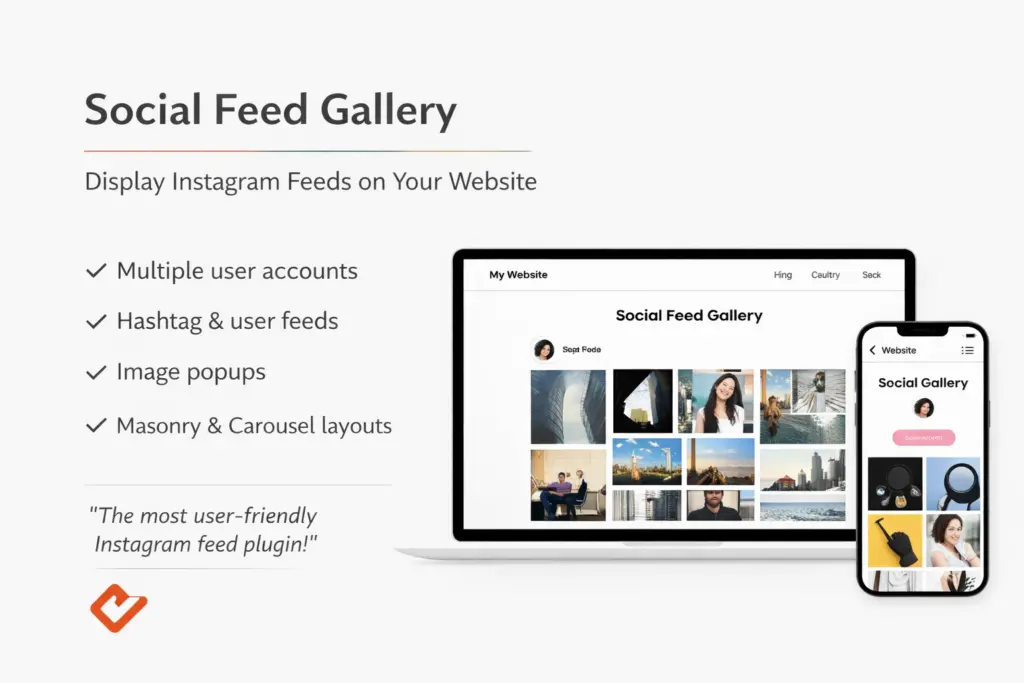
10Web Social Photo Feed focuses on displaying Instagram content in creative layouts.
If your website relies heavily on images or visual design, this plugin offers several gallery styles.
Available Layouts
- Masonry grid
- Image browser
- Blog-style feed
- Slideshow gallery
Example Code
[insta-gallery layout="masonry"]
This creates a masonry style gallery layout.
Pricing
| Plan | Price |
|---|---|
| Free Version | $0 |
| Pro Version | Around $30/year |
Best For
- Photography websites
- Creative portfolios
- Design agencies
5. Feed Them Social
Feed Them Social is slightly different because it supports multiple social media platforms, not just Instagram.
You can combine feeds from:
- YouTube
This makes it useful for websites that manage several social media channels.
Key Features
- Multi-platform feeds
- Customizable layouts
- Responsive design
- Social media integration
Pricing
| Plan | Price |
|---|---|
| Free Version | $0 |
| Premium Version | ~$50/year |
Best For
- Businesses managing multiple social networks
- Marketing websites
- Content creators
How to Add an Instagram Feed to WordPress
The process is usually simple and takes only a few minutes.
Step 1: Install a Plugin
Go to:
WordPress Dashboard → Plugins → Add New
Search for an Instagram feed plugin and click Install.
Step 2: Connect Your Instagram Account
Most plugins require you to connect your Instagram account through the Instagram API.
Usually, this requires an Instagram Business or Creator account.
Step 3: Create Your Feed
Choose:
- Layout style
- Number of images
- Grid columns
- Feed location
Step 4: Embed the Feed
You can add the feed using:
- Gutenberg block
- Shortcode
- WordPress widget
Tips for Choosing the Right Instagram Feed Plugin
When selecting a plugin, it helps to consider a few practical factors.
Performance
Heavy plugins can slow down your website. If speed matters, choose a lightweight plugin.
Design flexibility
Some plugins allow more layout customization than others.
Compatibility
Make sure the plugin works with your page builder or theme.
Updates and support
Always check when the plugin was last updated to ensure it’s actively maintained.
Frequently Asked Questions
Do Instagram feeds slow down websites?
Some plugins may add extra scripts that affect loading speed. Choosing a well-optimized plugin helps reduce this impact.
Do I need coding skills to use Instagram feed plugins?
No. Most plugins work with simple blocks or shortcodes, so no coding knowledge is required.
Can I display Instagram reels on WordPress?
Yes. Many modern Instagram feed plugins support reels, photos, and videos.
Final Thoughts
Adding an Instagram feed to your WordPress website is a simple way to make your site more dynamic and visually engaging.
Instead of letting your Instagram content stay only on social media, these plugins allow you to showcase your posts directly on your website.
If you prefer something lightweight and simple, plugins like Social Feed Widget are a great starting point. If you want advanced customization or marketing features, other plugins like Smash Balloon or Spotlight Social Feeds may be better suited.
The good news is that most of these plugins offer free versions, so you can experiment and see which one works best for your website.