Follow Me On Social Media!


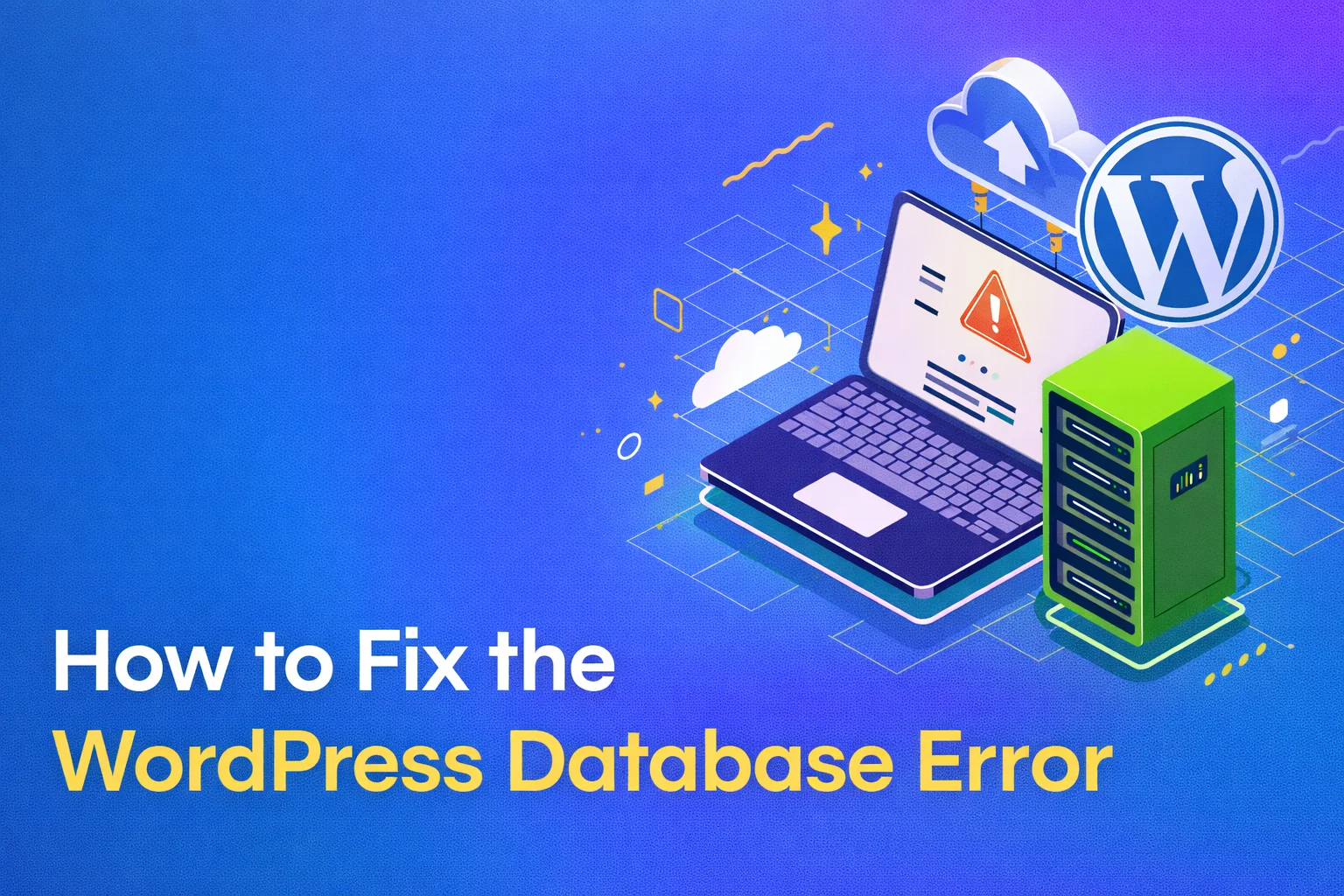
Few WordPress errors are as stressful as this one.
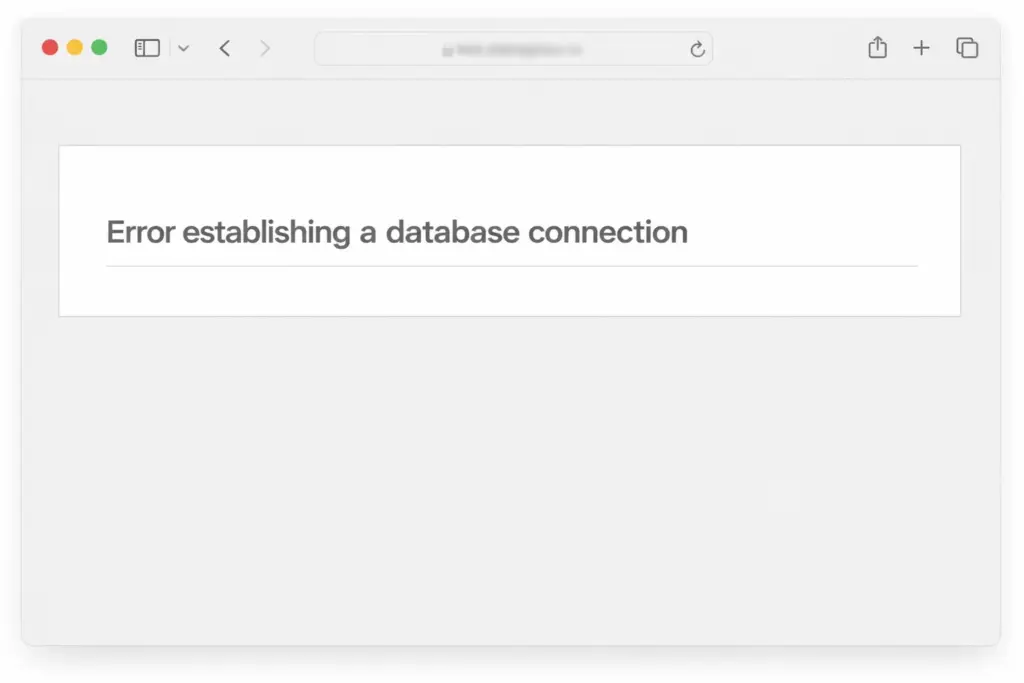
You open your website expecting to check a page or publish a post, and instead you see a plain white screen with one message: “Error establishing a database connection.” No dashboard, no homepage, no access to anything.
The good news is that this error usually looks worse than it really is.
In most cases, your content is still there. Your posts, pages, images, and settings have not suddenly disappeared. WordPress just can’t communicate with the database where all that information is stored. Once the connection is restored, your site usually comes back exactly as it was.
This is also one of the most common WordPress problems, and in many cases it can be fixed in less than 30 minutes.
In this guide, I’ll explain what this error actually means, why it happens, and the most effective ways to fix it step by step.
Table of Contents
What Does “Error Establishing a Database Connection” Mean?
WordPress stores most of your website data inside a MySQL database. That includes things like:
- blog posts
- pages
- comments
- users
- settings
- plugin options
- theme settings
Every time someone visits your site, WordPress runs PHP code that connects to the database, pulls the necessary content, and builds the page in real time.
If WordPress cannot connect to the database, it has nothing to display. It can’t load your homepage, your posts, your admin dashboard, or your settings. Instead, it stops and shows the database connection error.
What the database stores
| Stored in Database | Not Stored in Database |
|---|---|
| Posts and pages | Theme files |
| Comments | Plugin files |
| User accounts | WordPress core files |
| Site settings | Media files on server |
| Plugin options | CSS/JS files in theme folders |
This is why the error is serious, but not usually destructive. The data is often still there — WordPress just can’t reach it.
Why This Error Happens
There are several reasons why WordPress may fail to connect to the database. Some are very common, while others happen only occasionally.
1. Wrong Database Credentials
This is the most common cause.
WordPress uses four important values in the wp-config.php file to connect to the database:
- database name
- database username
- database password
- database host
If even one of these values is wrong, the connection fails.
This often happens after:
- moving a website to a new host
- changing hosting settings
- editing
wp-config.phpmanually - resetting a database password
2. Database Server Problems
Sometimes the issue is not with WordPress itself, but with the database server.
If your MySQL server is overloaded, down, or temporarily unavailable, WordPress will not be able to establish a connection.
This can happen more often on cheap shared hosting plans where many websites use the same server resources.
3. Corrupted Database Tables
A WordPress database is constantly being read and updated. If something interrupts that process — for example, a failed update, server crash, or plugin conflict — some database tables may become corrupted.
When this happens, WordPress may not be able to read the information properly.
4. Corrupted WordPress Files
In some cases, the problem is caused by damaged WordPress core files.
This may happen after:
- a failed WordPress update
- incomplete file transfer
- malware infection
- broken manual edits
If the files responsible for connecting to the database are corrupted, the error can appear even when the database itself is fine.
5. Incorrect Site URL or Migration Errors
This is less common, but it can still happen.
After migrating a site, changing domains, or switching from HTTP to HTTPS, incorrect values inside the database can sometimes create configuration problems that make WordPress behave unexpectedly.
Quick Diagnosis: Where Does the Error Appear?
Before you start fixing anything, it helps to understand where the error appears.
This gives you a clue about what may be causing the problem.
| Where the Error Appears | Likely Cause | First Thing to Check |
|---|---|---|
Front end and /wp-admin | Database credentials or server issue | wp-config.php |
| Front end only | URL mismatch or server issue | Hosting/database status |
/wp-admin only | Theme/plugin conflict or file corruption | Core files and plugins |
A quick extra check: if you can open phpMyAdmin from your hosting control panel and see your database tables, that usually means the MySQL server is running.
How to Fix the Error Establishing a Database Connection
Now let’s go through the actual fixes, starting with the most common ones first.
Step 1: Back Up Your Website First
Before changing files, always back up your site if possible.
Even if the site is down, your hosting control panel may still offer backup options.
Backup methods
| Backup Method | Best For |
|---|---|
| Hosting backup tool | Quick full-site backup |
| cPanel backup | Manual server backup |
| WordPress backup plugin | If dashboard is accessible |
| Manual FTP + database export | Advanced users |
If you can’t create a backup because everything is inaccessible, don’t panic. The steps below are usually small and reversible.
Step 2: Check the Database Credentials in wp-config.php
This is the first thing you should check because it causes the error more often than anything else.
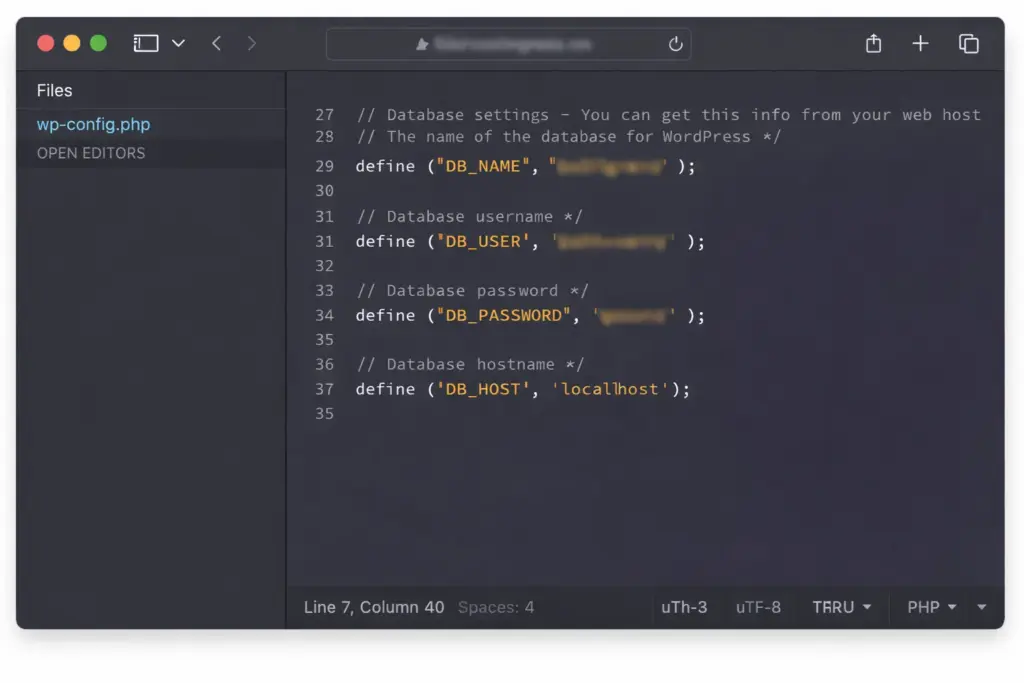
Open your wp-config.php file and look for these lines:
define( 'DB_NAME', 'your_database_name' );
define( 'DB_USER', 'your_database_username' );
define( 'DB_PASSWORD', 'your_database_password' );
define( 'DB_HOST', 'localhost' );
Now compare those values with the ones in your hosting account.
Where to verify them
Most hosting providers let you check this in:
- cPanel → MySQL Databases
- Hosting dashboard → Database settings
- phpMyAdmin login details
Common mistakes
| Mistake | What Happens |
|---|---|
| Wrong database name | WordPress cannot find the database |
| Wrong username | Access denied |
| Wrong password | Authentication fails |
| Wrong host value | WordPress looks for the server in the wrong place |
| Extra spaces or typos | Connection fails instantly |
If you fix the credentials and save the file, your site may come back immediately.
Step 3: Test the Database Connection Manually
If the credentials look correct, the next step is to test them directly outside WordPress.
Create a file called testdb.php in your root directory and add this code:
<?php
$link = mysqli_connect('DB_HOST_value', 'DB_USER_value', 'DB_PASSWORD_value', 'DB_NAME_value');
if (!$link) {
    die('Connection failed: ' . mysqli_connect_error());
}
echo 'Connected successfully';
mysqli_close($link);
?>
Replace the placeholder values with your real database details.
Then open the file in your browser:
https://yourdomain.com/testdb.php
Possible results
| Result | Meaning |
|---|---|
| “Connected successfully” | Database credentials are correct |
| Connection error message | Wrong credentials or server problem |
Important: delete this test file immediately after using it, because it contains sensitive login information.
Step 4: Check Whether the Database Server Is Running
Sometimes everything in WordPress is correct, but the MySQL server itself is down or overloaded.
The easiest way to check is by trying to open phpMyAdmin from your hosting control panel.
If phpMyAdmin works
That usually means:
- the MySQL server is running
- your database still exists
- the problem is likely with WordPress configuration or files
If phpMyAdmin does not work
That usually means:
- the database server may be down
- the host may be having issues
- you may need to contact hosting support
This is especially common on overloaded shared hosting environments.
Step 5: Repair the Database
If the database is running but some tables are corrupted, WordPress includes a built-in repair tool.
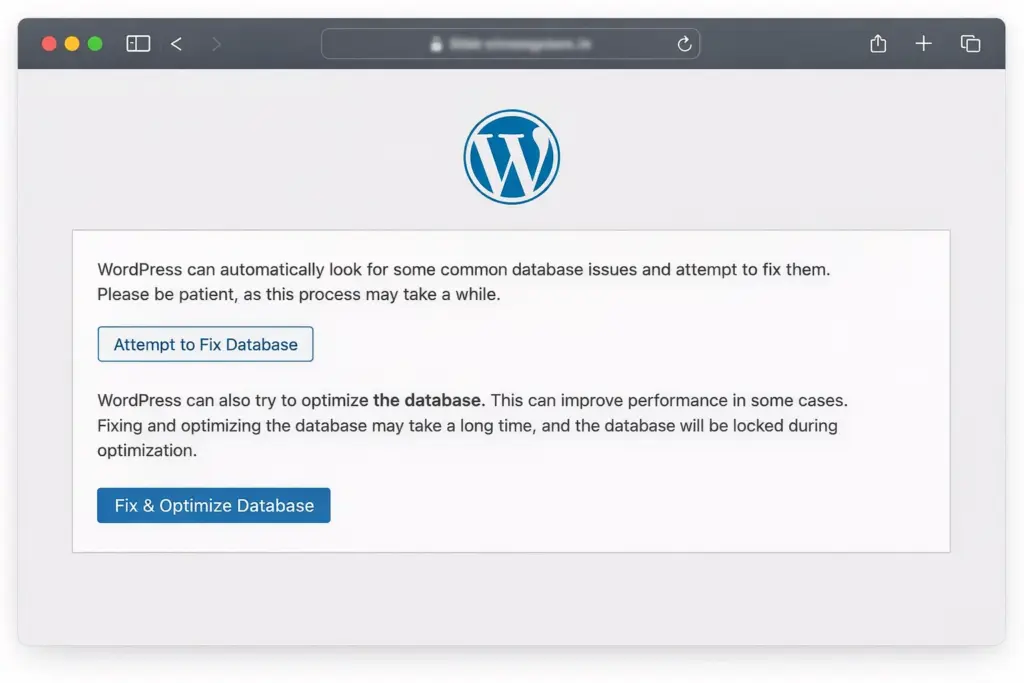
Open wp-config.php and add this line:
define( 'WP_ALLOW_REPAIR', true );
Then visit:
https://yourdomain.com/wp-admin/maint/repair.php
You’ll see options such as:
- Repair Database
- Repair and Optimize Database
Choose Repair and Optimize Database for the more complete process.
What this repair tool does
| Function | Benefit |
|---|---|
| Repairs corrupted tables | Restores damaged database structure |
| Optimizes tables | Improves performance |
| Removes overhead | Cleans up storage inefficiencies |
After the repair is complete, remove the line from wp-config.php immediately. Leaving it there is a security risk.
Step 6: Replace Corrupted WordPress Core Files
If the database credentials and server are fine, the issue may be caused by damaged WordPress core files.
To fix that:
- Download a fresh copy of WordPress from WordPress.org
- Extract the files on your computer
- Connect to your site via FTP
- Upload fresh copies of:
wp-adminwp-includes
Do not overwrite the wp-content folder, because that contains your themes, plugins, and uploads.
This replaces the core files without touching your content.
Step 7: Verify Database User Privileges
Even with the correct credentials, the database user may not have permission to access the database properly.
In your hosting panel, check whether the database user is assigned to the correct database and has All Privileges enabled.
Privileges to look for
| Privilege Type | Needed? |
|---|---|
| SELECT | Yes |
| INSERT | Yes |
| UPDATE | Yes |
| DELETE | Yes |
| ALL PRIVILEGES | Best option |
If the user has limited permissions, WordPress may fail to load properly.
Step 8: Contact Your Hosting Provider
If none of the previous fixes work, the issue is likely server-side.
At this point, it’s best to contact your hosting provider and tell them:
- when the error started
- whether phpMyAdmin works
- whether you already checked
wp-config.php - whether you tested the database manually
Good hosting support can often identify problems like:
- MySQL crashes
- server overload
- connection limits
- corrupted database services
How to Prevent This Error in the Future
Once your site is back online, it’s a good idea to reduce the chances of this happening again.
Keep Regular Backups
Backups are your safety net. If something breaks, you can restore the site much faster.
Use Reliable Hosting
Cheap hosting often causes more problems than it saves money. If your site keeps having database issues, the server may simply not be stable enough.
Update WordPress, Themes, and Plugins
Outdated software can create bugs, compatibility issues, and corrupted data.
Optimize Your Database Regularly
Over time, WordPress databases collect extra overhead from:
- post revisions
- spam comments
- expired transients
- orphaned plugin data
Cleaning these regularly helps keep the database healthy.
Monitor Uptime
Use an uptime monitoring tool so you know quickly if the site goes down.
| Tool Type | Purpose |
|---|---|
| Backup plugin | Recovery |
| Uptime monitor | Alerts when the site is down |
| Security plugin | Prevents attacks |
| Database cleanup plugin | Reduces bloat |
Frequently Asked Questions
Will I lose my content if I see this error?
No. In most cases, your content is still in the database. The issue is usually that WordPress cannot connect to it.
Can I fix this without FTP?
Sometimes yes, if you have access to your hosting control panel and file manager. Otherwise, FTP or hosting support may be necessary.
Why did this happen after migrating my site?
This usually happens because the new hosting environment uses different database credentials, and wp-config.php still contains the old ones.
Is it safe to leave WP_ALLOW_REPAIR enabled?
No. Remove it as soon as the repair is complete.
Can a hacked site cause this error?
Yes. Malware or hackers can modify core files, delete tables, or change credentials.
Wrapping Up
The “Error Establishing a Database Connection” can look scary, especially because it often takes the whole site down. But in many cases, the problem comes from one of a few common causes: wrong credentials, server issues, or corrupted files.
Here’s the best order to work through it:
- back up your site
- verify
wp-config.phpcredentials - test the database connection manually
- check if MySQL is running
- repair the database
- replace core files
- verify privileges
- contact hosting support if needed
Most importantly, remember this: the error usually does not mean your content is gone. It usually means WordPress simply cannot reach it.
Once the connection is fixed, your site often comes back exactly as it was.