Follow Me On Social Media!



Few WordPress errors are as confusing as the White Screen of Death, often shortened to WSoD.
One moment your site is working normally, and the next moment you open it and see… nothing. No error message, no warning, no helpful explanation. Just a blank white page.
It can be stressful, especially if your website is important for your business, blog, or online store. It feels like everything has disappeared, but in most cases, your content is still there. Your posts, pages, images, and settings are usually safe. The problem is that WordPress has hit an error so serious that it can’t finish loading the page.
The good news is that this issue is usually fixable.
In this guide, I’ll explain what the WordPress White Screen of Death actually is, what causes it, and the most effective ways to fix it step by step.
Table of Contents
What Is the WordPress White Screen of Death?
The White Screen of Death happens when WordPress runs into a fatal PHP error or a serious server problem that prevents the page from loading properly.
Instead of showing a helpful message, the site simply stops outputting content and gives you a blank white screen.
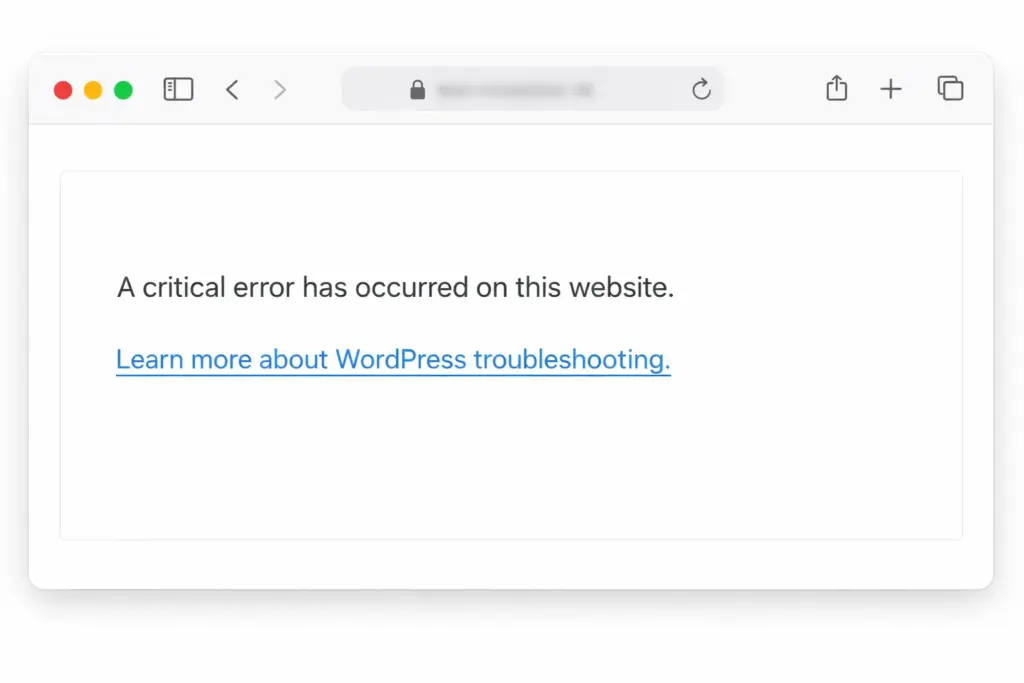
Depending on your setup, the issue may look slightly different:
- a completely blank white page
- a partial blank page
- an HTTP 500 error
- a “critical error on this website” message
- a blank dashboard page
In some cases, only the front end is affected. In other cases, the WordPress admin area also becomes inaccessible.
How it may appear
| Situation | What You Might See |
|---|---|
| Front end only affected | Homepage is blank, dashboard still works |
| Dashboard only affected | Admin area blank, website still visible |
| Entire site affected | Both front end and /wp-admin stop loading |
| Severe server issue | HTTP 500 or generic server error |
This error often appears right after:
- updating a plugin
- changing a theme
- editing code
- updating WordPress
- installing a new extension
That timing is important, because it often points directly to the cause.
Why the White Screen of Death Happens
The White Screen of Death usually happens because WordPress tries to load something that causes a fatal error or exceeds available resources.
Several common issues can trigger it.
1. PHP Memory Limit Reached
WordPress uses PHP memory to run plugins, themes, and page generation. If your site asks for more memory than the server allows, WordPress may stop and display a blank screen.
This is especially common on:
- low-cost shared hosting
- large plugin-heavy websites
- image-heavy or resource-heavy pages
2. Plugin Conflicts
Plugins are one of the most common causes of WSoD. A bad update, compatibility problem, or coding error in a plugin can break your site instantly.
Sometimes one plugin is faulty. Other times two plugins conflict with each other.
3. Theme Problems
A broken theme file, especially functions.php, can cause WordPress to crash.
This often happens after:
- editing theme files manually
- uploading custom code
- updating a theme
- installing an incompatible theme
4. Corrupted Core Files
WordPress itself may become partially corrupted after a failed update or interrupted file transfer.
If important core files are missing or damaged, WordPress may not load correctly.
5. Caching Issues
Sometimes the site itself is fixed, but the cached version of the broken page is still being served.
This can happen with:
- browser cache
- caching plugins
- server-level cache
- CDN cache
6. File Permission Errors
If WordPress cannot read important files due to incorrect permissions, the site may fail to load.
This is less common, but it can happen after migrations or server changes.
Quick Diagnosis Before You Start
Before jumping into fixes, it helps to narrow down where the problem appears.
That will save time and help you focus on the most likely cause.
Quick diagnosis table
| Where the error appears | Likely cause |
|---|---|
| Front end only | Theme issue, caching issue, specific plugin conflict |
| Admin area only | Plugin conflict, user-specific dashboard issue |
| Entire site | Memory issue, broken plugin, corrupted core files |
| After editing code | Syntax error in theme or plugin file |
| After update | Failed plugin/theme/core update |
Important first step
Before making changes, back up your website if possible.
If you still have access to your hosting control panel, create a backup there first. If not, at least make note of the recent changes you made before the issue appeared.
That one step can save a lot of stress later.
How to Fix the WordPress White Screen of Death
Now let’s go through the fixes one by one, starting with the most common solutions.
1. Deactivate All Plugins
Plugin conflicts cause a very large percentage of White Screen of Death problems.
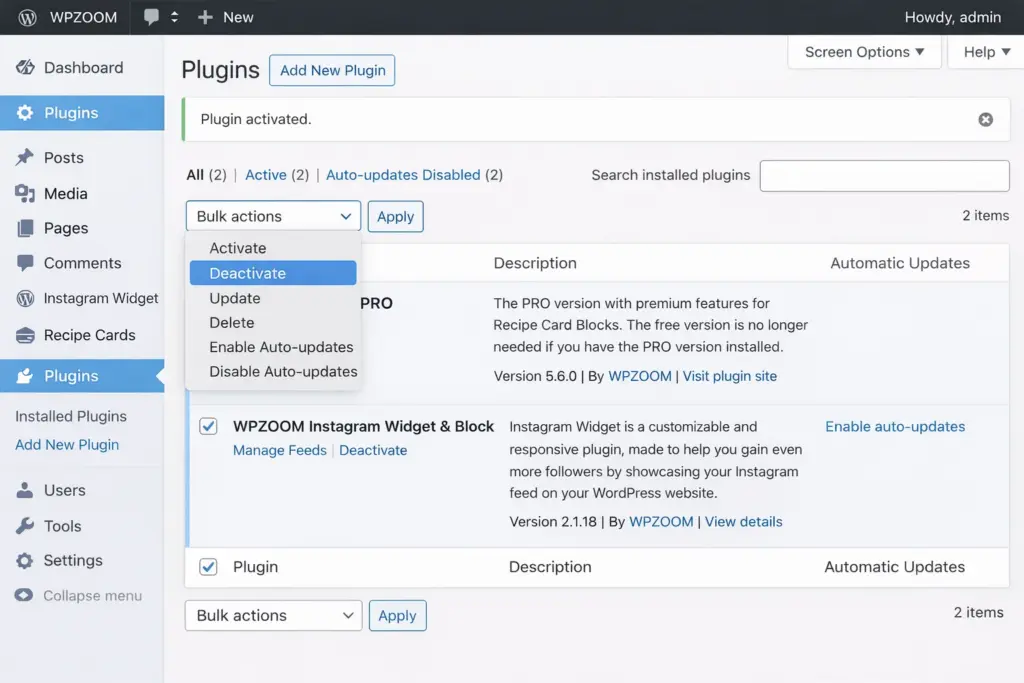
If you can still access your WordPress dashboard:
- Go to Plugins → Installed Plugins
- Select all plugins
- Choose Deactivate
- Apply the change
If you cannot access the dashboard, use FTP or your hosting file manager.
Go to:
/wp-content/plugins/
Rename the plugins folder to something like:
plugins-disabled
This instantly deactivates all plugins.
What to do next
After deactivating all plugins, check your site again.
- If the site works, a plugin caused the error
- If the site is still blank, move on to the next fix
If the site comes back, reactivate plugins one by one until the problem returns. The last activated plugin is usually the culprit.
Plugin troubleshooting table
| Result after deactivating plugins | Meaning |
|---|---|
| Site works again | One plugin caused the issue |
| Site still blank | Problem is elsewhere |
| Site partly works | Multiple issues may exist |
2. Switch to a Default WordPress Theme
If plugins are not the problem, your theme may be causing the error.
If you can access the dashboard:
- Go to Appearance → Themes
- Activate a default WordPress theme such as Twenty Twenty-Four or Twenty Twenty-Five
If you cannot access the dashboard, go to:
/wp-content/themes/
Rename your active theme folder.
WordPress will then usually fall back to a default theme if one is installed.
Why this helps
A broken theme file, bad template, or syntax error in functions.php can trigger the White Screen of Death immediately.
Switching to a default theme is one of the fastest ways to confirm whether the issue is theme-related.
Theme troubleshooting table
| After switching theme | Meaning |
|---|---|
| Site works | Theme caused the problem |
| Site still broken | Theme is not the main cause |
| Only some pages work | Theme may be partly incompatible |
3. Clear All Caches
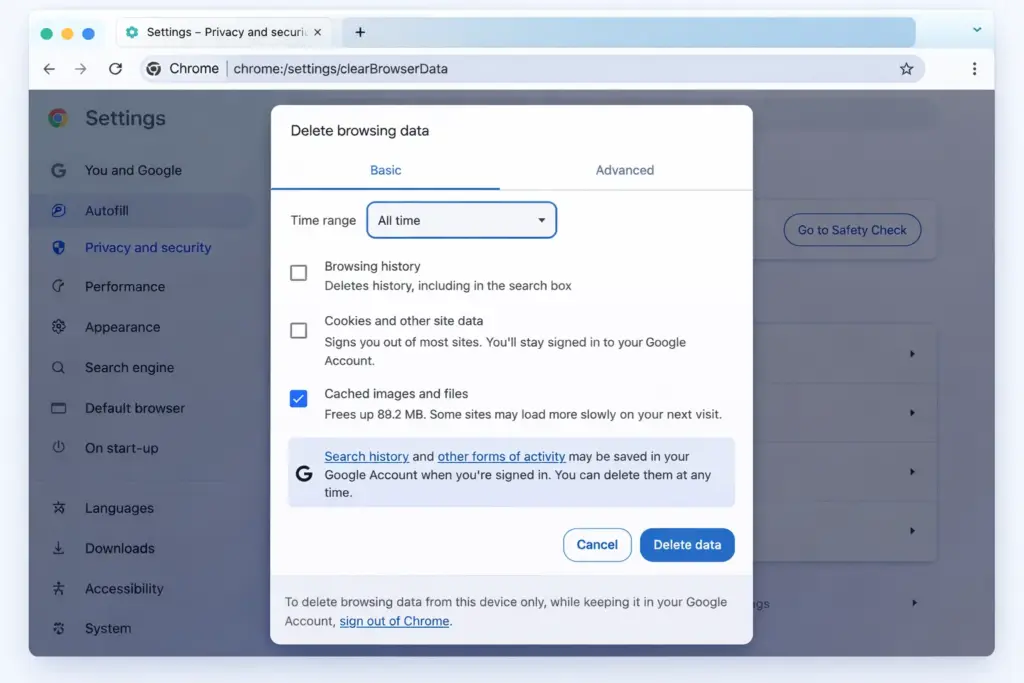
Caching can make troubleshooting more confusing than it should be.
Even after fixing the real problem, your browser or caching plugin may still show the old broken version.
Clear these caches:
- browser cache
- WordPress caching plugin cache
- server cache
- CDN cache if you use one
Common places to clear cache
| Cache Type | Where to Clear It |
|---|---|
| Browser cache | Browser settings |
| Plugin cache | WP Rocket, LiteSpeed Cache, W3 Total Cache, etc. |
| Hosting cache | Hosting dashboard |
| CDN cache | Cloudflare or other CDN panel |
Also try opening the site in a private browsing window to rule out local cache problems.
4. Enable WordPress Debug Mode
The White Screen of Death hides useful error details. Enabling debug mode helps reveal what’s actually wrong.
Open your wp-config.php file and add or edit these lines:
define('WP_DEBUG', true);
define('WP_DEBUG_LOG', true);
define('WP_DEBUG_DISPLAY', false);
This tells WordPress to log errors instead of showing them to visitors.
After that, check the log file here:
/wp-content/debug.log
What you may find there
- plugin fatal error
- theme function error
- missing file
- memory exhausted message
- PHP syntax problem
This is often the fastest way to pinpoint the exact file causing the issue.
Important
Once you finish troubleshooting, turn debug mode off again. It should not stay enabled on a live production site.
5. Increase the PHP Memory Limit
If the issue is caused by memory exhaustion, increasing PHP memory may fix it quickly.
Open wp-config.php and add this line:
define('WP_MEMORY_LIMIT', '256M');
You can try values such as:
128M256M512M
However, if your hosting provider enforces a lower server-level memory limit, this change may not work on its own.
Memory usage guide
| Site Type | Recommended Memory |
|---|---|
| Small blog | 128M |
| Business website | 256M |
| WooCommerce site | 256M–512M |
| Large plugin-heavy site | 512M or more |
If increasing the memory limit does not help, contact your host and ask them to check the PHP memory configuration.
6. Replace Corrupted WordPress Core Files
If the problem started after a failed update or interrupted transfer, WordPress core files may be corrupted.
To fix this:
- Download a fresh copy of WordPress from WordPress.org
- Extract the files on your computer
- Upload fresh copies of:
wp-adminwp-includes
Do not overwrite the wp-content folder, because it contains your themes, plugins, and uploads.
This process safely replaces core files without removing your content.
When to use this fix
| Situation | Should You Try This? |
|---|---|
| Failed WordPress update | Yes |
| Broken core files suspected | Yes |
| Plugin conflict confirmed | No, do plugin fix first |
| Theme issue confirmed | No, do theme fix first |
7. Check File Permissions
Incorrect file permissions can block WordPress from reading or loading critical files.
Recommended WordPress permissions are usually:
| Item | Recommended Permission |
|---|---|
| Files | 644 |
| Folders | 755 |
wp-config.php | sometimes 640 or 600 |
If permissions are too restrictive or incorrectly configured, WordPress may fail to run normally.
Be careful here. Wrong permission changes can create security risks. If you’re not comfortable adjusting them manually, ask your host to verify them for you.
8. Remove a Stuck .maintenance File
Sometimes WordPress gets stuck in maintenance mode after an update.
When this happens, the site may look blank or partially broken.
Check your site’s root folder for a file named:
.maintenance
If it exists, delete it.
That may immediately restore the site.
9. Fix Syntax Errors in Custom Code
If the White Screen of Death appeared right after you edited code, the issue may be a syntax error.
This often happens when editing:
functions.php- custom plugin files
- code snippets inserted manually
A missing semicolon, bracket, or quote is enough to break the entire site.
If you recently added code, remove it or restore the previous file version.
Common coding mistakes
| Error Type | Example |
|---|---|
| Missing semicolon | echo "Hello" instead of echo "Hello"; |
| Unclosed bracket | { without matching } |
| Wrong function syntax | Incorrect PHP structure |
If possible, use a code snippet plugin instead of editing theme files directly in the future.
10. Restore from Backup
If none of the fixes work or the issue is too risky to troubleshoot live, restoring a backup may be the safest option.
This is especially useful if:
- the error appeared after a recent update
- you have a clean backup from earlier the same day
- the site is business-critical and must return quickly
Backup restore options
| Backup Source | Best For |
|---|---|
| Hosting backup | Fast full-site restore |
| Plugin backup | Website-level restore |
| Manual backup | Advanced users |
Restoring a backup is not always the best first option, but it is often the quickest route back online.
Prevention and Best Practices
The best way to handle the White Screen of Death is to reduce the chances of it happening in the first place.
Keep Everything Updated
Regularly update:
- WordPress core
- themes
- plugins
Outdated software is one of the most common causes of compatibility issues.
Use Quality Plugins and Themes
Only install plugins and themes from reputable sources.
Before installing anything new, check:
- last update date
- user reviews
- compatibility with your WordPress version
Use a Staging Site
A staging site lets you test updates and changes before applying them to your live site.
This is one of the best ways to prevent major problems.
Take Regular Backups
Automatic daily backups are essential.
A backup turns a serious outage into a manageable issue.
Monitor Site Uptime
Use uptime monitoring tools so you know right away if the site goes down.
Good prevention habits
| Best Practice | Why It Matters |
|---|---|
| Daily backups | Fast recovery |
| Staging tests | Prevents live-site errors |
| Fewer plugins | Reduces conflicts |
| Trusted themes | Improves stability |
| Monitoring tools | Detects problems early |
Final Thoughts
The WordPress White Screen of Death looks alarming because it hides the real error behind a blank page. But in most cases, the cause is one of a few common issues: plugin conflicts, theme problems, low memory, or corrupted files.
The most effective way to troubleshoot it is to work step by step:
- deactivate plugins
- switch themes
- clear cache
- enable debug mode
- increase memory
- check core files
- review permissions
- restore backup if necessary
Most importantly, don’t panic. In the majority of cases, your content is still there and the site can be restored.
A calm, methodical approach usually solves the problem much faster than random trial and error.