
Follow Me On Social Media!



A slow WordPress website can quietly damage your business without you realizing it.
When visitors open your site and it takes too long to load, many of them leave before even reading the first line. Research shows that more than half of mobile users abandon a page if it takes longer than a few seconds to load. Even a small delay can reduce conversions, lower engagement, and increase bounce rates.
Search engines also pay attention to performance. Google now considers Core Web Vitals and page experience as ranking factors. This means that slower websites may struggle to appear in search results, while faster sites often gain a competitive advantage.
The good news is that WordPress can be extremely fast when optimized properly.
In this guide, you’ll learn practical techniques to improve your WordPress speed, optimize Core Web Vitals, and create a faster experience for your visitors. Whether you run a personal blog, business website, or online store, these strategies can significantly improve your site’s performance.
Table of Contents
How to Test Your WordPress Website Speed
Before making any improvements, it’s important to measure your website’s current performance. Testing your site speed gives you a baseline and helps you identify the exact problems affecting performance.
Speed testing tools analyze your site and provide recommendations on what can be improved.
Popular Website Speed Testing Tools
| Tool | Best For | Pricing |
|---|---|---|
| Google PageSpeed Insights | Core Web Vitals and Google metrics | Free |
| GTmetrix | Detailed loading analysis | Free / Paid |
| WebPageTest | Advanced testing locations | Free |
| Treo Site Speed Test | Core Web Vitals reports | Free |
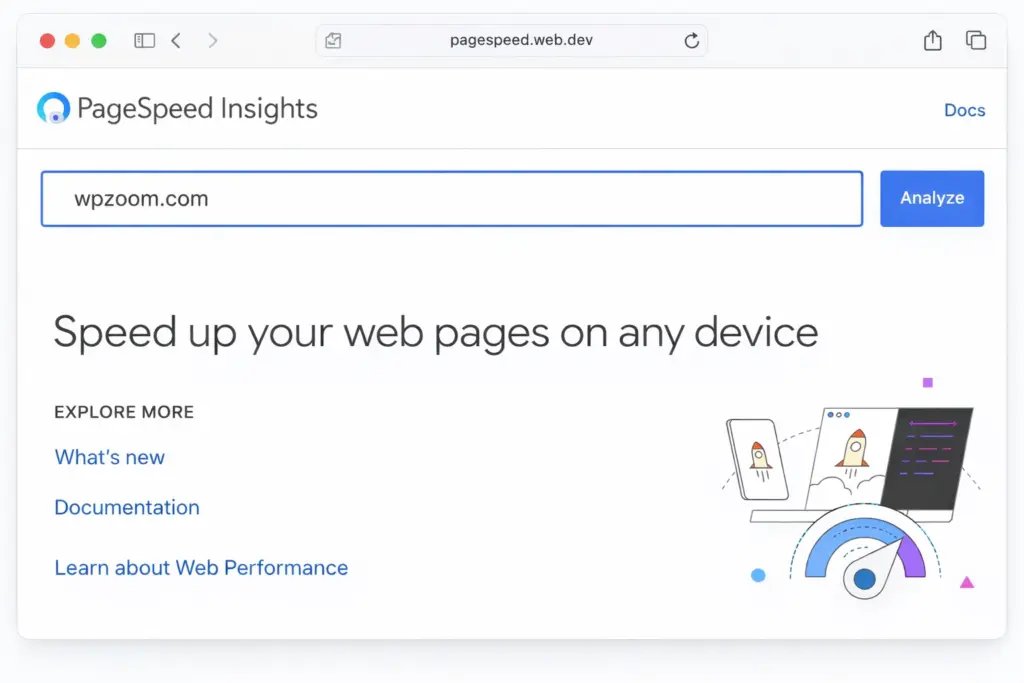
Each tool provides slightly different insights, so running multiple tests can give you a clearer picture of your website’s performance.
Important Speed Metrics to Understand
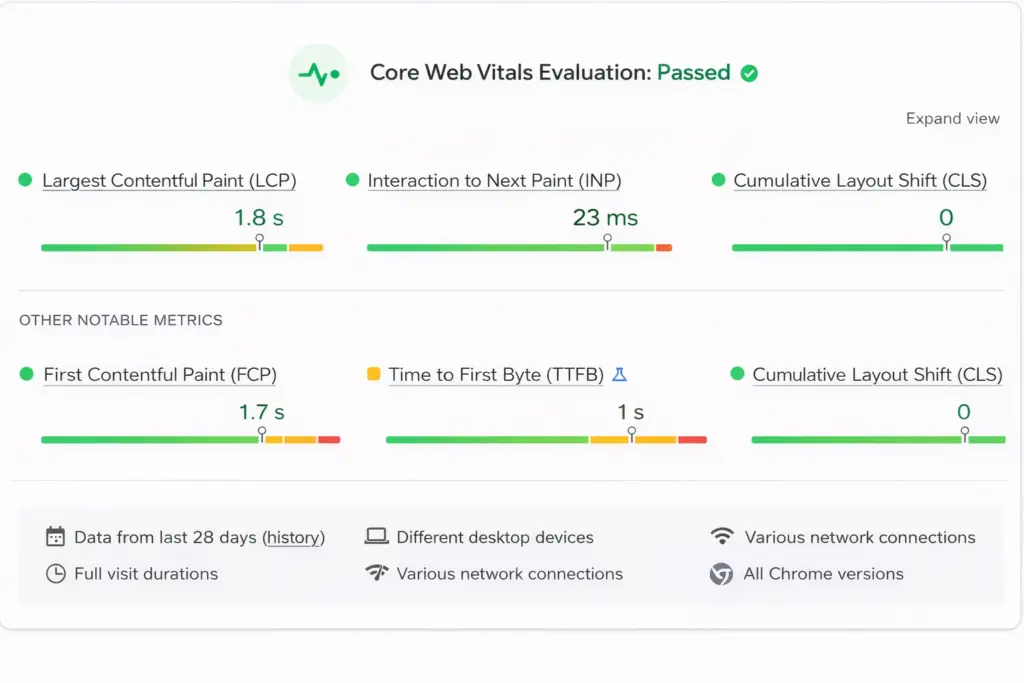
When analyzing performance reports, you’ll usually see several key metrics.
| Metric | What It Measures | Recommended Value |
|---|---|---|
| Largest Contentful Paint (LCP) | Time for main content to appear | Under 2.5 seconds |
| First Contentful Paint (FCP) | First visual element loading | Under 1.8 seconds |
| Cumulative Layout Shift (CLS) | Visual stability | Under 0.1 |
| Interaction to Next Paint (INP) | Page responsiveness | Under 200 ms |
| Time to First Byte (TTFB) | Server response time | Under 600 ms |
Improving these metrics can significantly improve both user experience and search rankings.
Tips for Running Accurate Speed Tests
For reliable results, follow these simple guidelines:
- Clear all caches before testing
- Run multiple tests and compare averages
- Test both mobile and desktop performance
- Test from different geographic locations
- Record your baseline results
Tip: Focus on real loading speed instead of chasing a perfect score. A site that loads quickly for users is far more important than achieving a perfect performance score.
What Slows Down a WordPress Website?
Most WordPress performance issues come from a combination of factors. Sometimes a single problem is responsible, but often several small inefficiencies add up and create noticeable delays.
Below are the most common causes of slow WordPress websites.
| Performance Issue | Impact | Typical Cause |
|---|---|---|
| Weak hosting | Slow server response | Overloaded shared hosting |
| Too many plugins | Increased database queries | Poorly optimized plugins |
| Heavy themes | Large page sizes | Bloated design features |
| Large images | Slow page loading | Uncompressed media files |
| Excessive scripts | Render blocking | Ads and tracking tools |
| Database clutter | Slow queries | Old revisions and spam |
| Outdated PHP | Poor server performance | Old hosting environments |
| Missing caching | Slow page generation | No caching plugin |
| Lack of compression | Large file transfers | Missing GZIP/Brotli |
| Third-party requests | Network delays | External widgets or fonts |
The key is identifying which of these problems affects your specific site.
Essential Ways to Speed Up Your WordPress Site
These improvements provide the biggest speed benefits with the least technical complexity.
1. Choose Fast and Reliable Hosting
Your hosting provider is the foundation of your website’s performance. Even the best optimization techniques cannot compensate for poor hosting.
Different hosting types offer different performance levels.
| Hosting Type | Performance | Best For |
|---|---|---|
| Shared Hosting | Basic | Small websites |
| VPS Hosting | Better resources | Growing sites |
| Managed WordPress Hosting | Optimized for WordPress | Business websites |
Recommended Hosting Features
When choosing a host, look for:
- SSD storage
- modern PHP support
- built-in caching
- CDN integration
- global data centers
- HTTP/2 or HTTP/3 support
These technologies significantly improve loading speed.
2. Use a Lightweight WordPress Theme
Themes can have a large impact on page speed. A poorly optimized theme can add unnecessary scripts, styles, and features that slow down your site.
A well-optimized theme should include:
- clean and minimal code
- responsive design
- SEO-friendly structure
- regular updates
- compatibility with performance plugins
Fast WordPress Themes
| Theme | Strength |
|---|---|
| Astra | Lightweight and flexible |
| GeneratePress | Fast and modular |
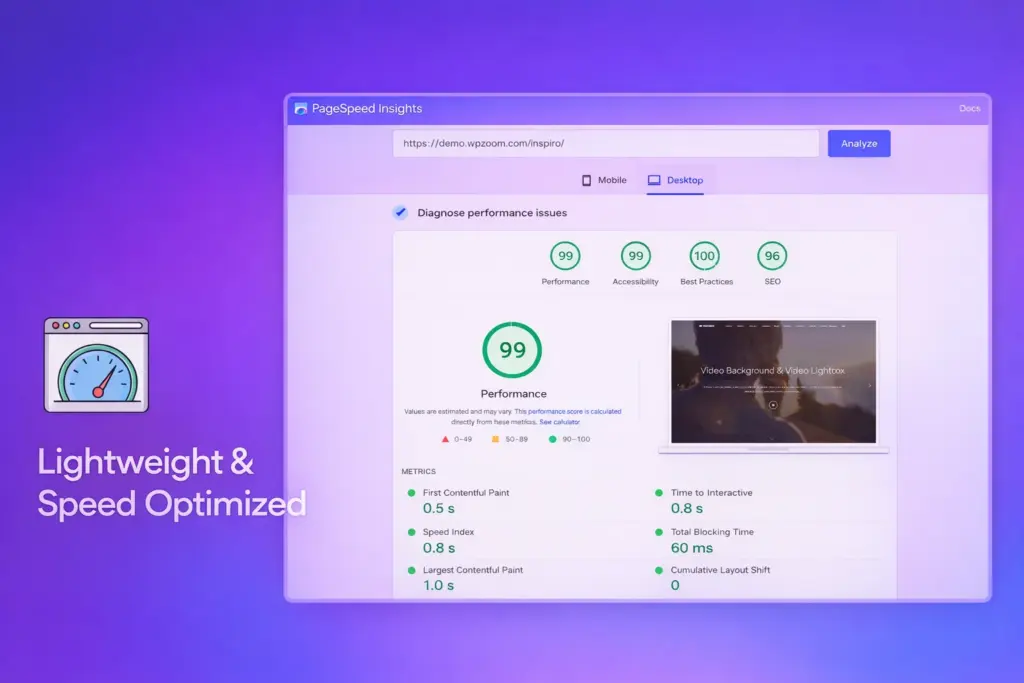
| Inspiro | Optimized for media content |
Choosing a lightweight theme often improves speed immediately.
3. Install a Caching Plugin
Caching dramatically improves performance by storing ready-to-serve versions of your pages instead of generating them each time someone visits.
Without caching, WordPress must process PHP and database queries on every request.
With caching enabled, visitors receive static HTML files, which load much faster.
Recommended Caching Plugins
| Plugin | Type |
|---|---|
| WP Rocket | Premium optimization plugin |
| LiteSpeed Cache | Free (best with LiteSpeed servers) |
| W3 Total Cache | Advanced caching controls |
| WP Super Cache | Simple and reliable |
After installing a caching plugin, test your website to ensure everything works properly.
4. Optimize Images
Images are often the largest files on a website and one of the main causes of slow loading pages.
Proper image optimization can significantly reduce page size without affecting visual quality.
Image Optimization Techniques
- Convert images to modern formats like WebP
- Compress images before uploading
- Resize images to correct dimensions
- Enable lazy loading
Lazy loading delays image loading until users scroll near them, improving initial page load time.
Image Optimization Plugins
| Plugin | Features |
|---|---|
| Smush | Automatic compression |
| Imagify | Multiple compression levels |
| ShortPixel | Advanced compression and AVIF support |
These plugins automate most of the optimization process.
5. Optimize Your Plugins
Many people believe that having too many plugins slows WordPress. In reality, the issue is plugin quality, not quantity.
A single poorly coded plugin can slow your site more than many well-optimized ones.
Plugin Optimization Tips
- Remove plugins you don’t use
- Replace multiple plugins with one multifunction plugin
- test new plugins on staging environments
- monitor performance after installing new plugins
Some plugins also load scripts across the entire website even when they are only needed on certain pages.
Tools like Asset CleanUp allow you to load scripts only where necessary.
6. Use a Content Delivery Network (CDN)
A CDN improves website speed by delivering files from servers closer to your visitors.
Instead of loading everything from your main hosting server, a CDN stores copies of your static files across multiple global locations.
This reduces latency and improves loading times for international visitors.
Popular CDN Providers
| CDN | Key Advantage |
|---|---|
| Cloudflare | Free plan and strong security |
| Amazon CloudFront | AWS integration |
| KeyCDN | Performance-focused |
A CDN can dramatically improve global performance.
7. Keep WordPress Updated
Updates often include performance improvements, security patches, and compatibility fixes.
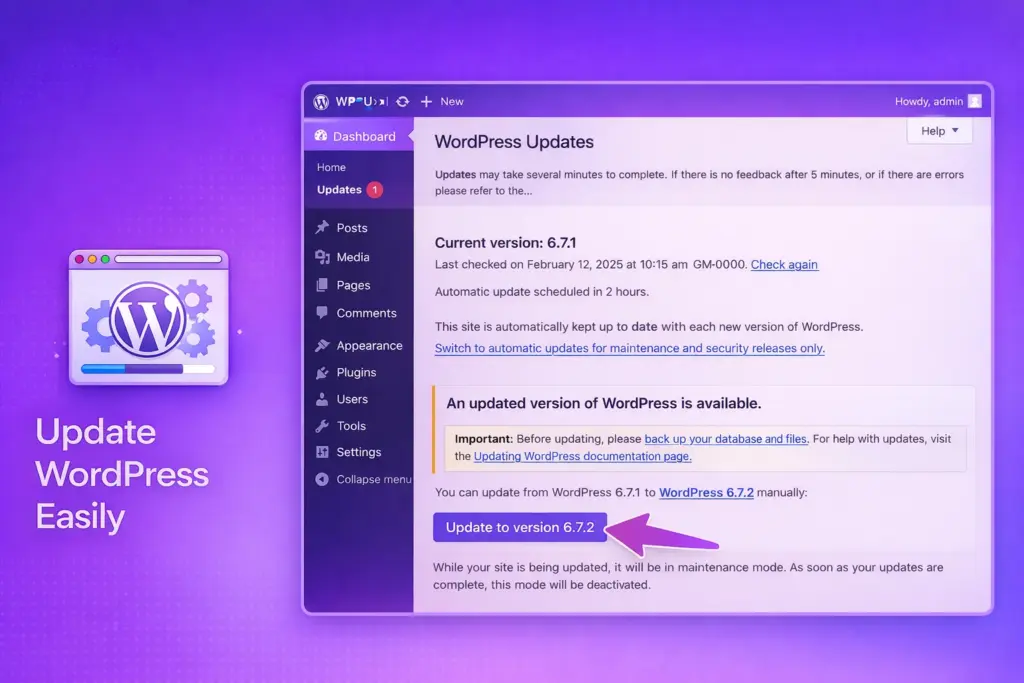
Make sure to regularly update:
- WordPress core
- themes
- plugins
- PHP version
Update Safely
Before performing updates:
- create a full backup
- test updates on staging when possible
- update components one at a time
This reduces the risk of conflicts or errors.
Advanced WordPress Speed Optimization
Once the basic optimizations are complete, advanced techniques can provide additional performance improvements.
Upgrade to a Modern PHP Version
WordPress runs on PHP, and newer versions offer major performance improvements.
| PHP Version | Speed Improvement |
|---|---|
| PHP 7.4 | Baseline |
| PHP 8.0 | ~25% faster |
| PHP 8.1 | ~50% faster |
Upgrading PHP can significantly reduce server processing time.
Always test compatibility before upgrading.
Optimize Your WordPress Database
Over time, databases collect unnecessary data such as:
- post revisions
- spam comments
- temporary transients
- leftover plugin data
Cleaning your database can improve query speed.
Database Optimization Plugins
| Plugin | Function |
|---|---|
| WP-Optimize | Automatic cleanup |
| Advanced Database Cleaner | Removes leftover data |
Regular maintenance keeps your database efficient.
Reduce External Requests
External scripts increase loading time because the browser must connect to additional servers.
Common external resources include:
- Google Fonts
- analytics scripts
- social media widgets
- advertising networks
Reducing these requests can noticeably improve performance.
Performance Monitoring and Maintenance
Speed optimization is not a one-time task. Regular monitoring helps maintain performance as your website grows.
Monthly Performance Checklist
| Week | Task |
|---|---|
| Week 1 | Run speed tests |
| Week 2 | Review and update plugins |
| Week 3 | Optimize database |
| Week 4 | Optimize new images |
Quarterly Optimization Tasks
- full website speed audit
- review hosting performance
- test CDN efficiency
- verify backups and security
Monitoring ensures your website remains fast over time.
Final Thoughts
Website speed is one of the most important aspects of modern web performance. A fast WordPress site improves user experience, boosts search rankings, and increases conversions.
The most effective approach is to start with the fundamentals:
- choose fast hosting
- use a lightweight theme
- install caching
- optimize images
- reduce unnecessary plugins
Then move on to more advanced optimizations like database cleanup, CDN integration, and script optimization.
With consistent optimization and monitoring, your WordPress site can deliver a fast and reliable experience for every visitor.
If you want, I can also help you improve this article even more for SEO and AdSense, like:
- adding FAQ schema sections
- adding featured snippet paragraphs
- writing a high-CTR title
- adding internal linking structure for ranking.