Follow Me On Social Media!



Seeing a critical error on your WordPress site can feel like a disaster, especially if your homepage stops loading and you can’t get into the dashboard. It usually happens without much warning. One moment the site works, and the next moment WordPress shows a message saying there has been a critical error on the website.
The good news is that this problem is usually fixable.
In most cases, your content is still safe. Your posts, pages, images, and database are usually untouched. What has failed is not your content itself, but a part of the code WordPress depends on to run properly. That means the site looks broken, but the damage is often much smaller than it seems.
This error is commonly caused by a plugin conflict, a theme issue, a PHP memory problem, or a failed update. With a calm step-by-step approach, you can often fix it in less than 30 minutes.
In this guide, you’ll learn what this WordPress critical error really means, what usually causes it, and how to fix it safely.
Table of Contents
What the WordPress Critical Error Means
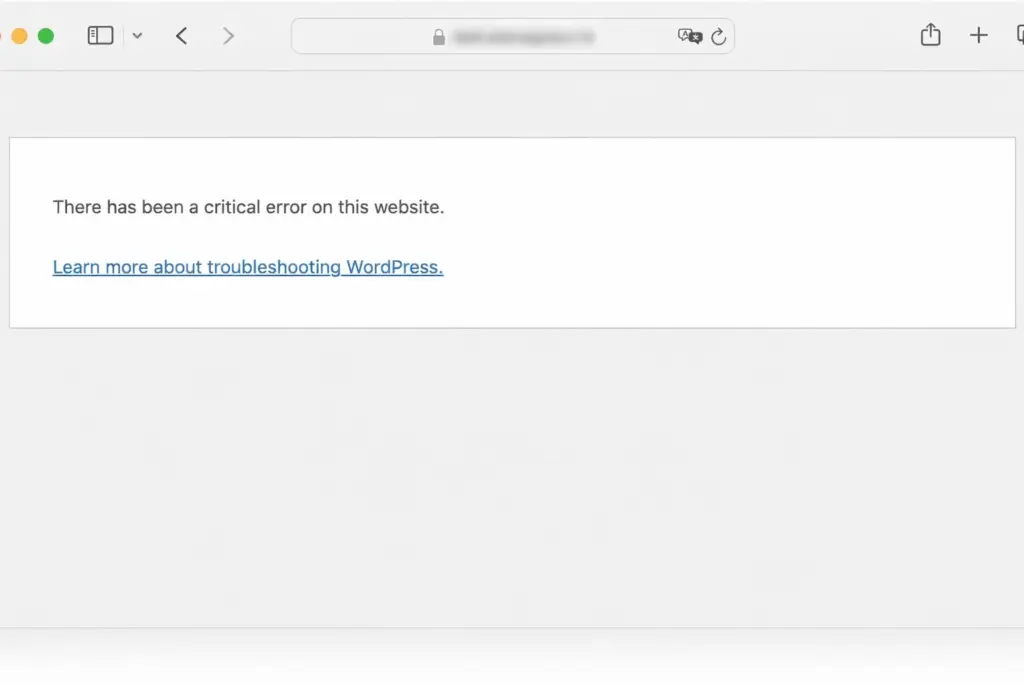
When WordPress says, “There has been a critical error on this website,” it means the site has run into a fatal PHP error that stopped it from loading.
WordPress is built with PHP. Every time someone opens a page, WordPress runs PHP code to load the theme, plugins, settings, database content, and layout. If one important part of that code breaks badly enough, WordPress cannot finish generating the page.
Instead of showing visitors a long technical error, WordPress displays a short general message.
This is actually better than how older WordPress versions handled the same problem. In earlier versions, websites often showed only a blank white page. Today, WordPress usually does three helpful things when a critical error happens:
- it hides the full technical details from visitors
- it often sends an email to the site administrator
- it may activate recovery mode so you can get back into the dashboard
The key thing to remember is this: a critical error usually means a code problem, not a content loss problem.
What is usually safe
| Site Element | Usually Safe? |
|---|---|
| Posts and pages | Yes |
| Images and uploads | Yes |
| Comments | Yes |
| Users | Yes |
| Database content | Yes |
| Theme or plugin code | May be causing the issue |
So while the website may stop loading, your content is usually still there waiting for the underlying problem to be fixed.
Common Causes of the WordPress Critical Error
This error does not happen randomly. There is usually a clear trigger, even if it is not obvious at first.
1. Plugin conflicts or broken plugin updates
This is one of the most common causes.
A plugin update may introduce code that is incompatible with:
- your WordPress version
- your PHP version
- another plugin
- your active theme
If the critical error appeared right after updating or installing a plugin, that plugin is a strong suspect.
2. Theme incompatibility
Themes can also cause fatal errors, especially if they are outdated or include custom code that no longer works with current WordPress or PHP versions.
This often happens after:
- changing themes
- editing
functions.php - updating WordPress while using an old theme
3. PHP memory exhaustion
If your website tries to use more server memory than PHP allows, WordPress can crash with a fatal error.
This is more likely on:
- shared hosting
- plugin-heavy websites
- WooCommerce stores
- page-builder-heavy websites
4. PHP version mismatch
Sometimes your hosting environment and your site tools are not compatible.
For example:
- a plugin may require PHP 8.1+, but your server is older
- your host may upgrade PHP, but an old plugin or theme breaks under the newer version
5. Corrupted WordPress core files
A failed update, broken upload, or partial server issue can damage WordPress core files. When important files are missing or corrupted, WordPress may stop loading completely.
6. Database-related problems
Sometimes the site cannot load because database access or related settings are broken. This is less common than plugin issues, but it can happen if credentials, tables, or server connections have a problem.
Common causes at a glance
| Cause | How Common It Is | Typical Trigger |
|---|---|---|
| Plugin conflict | Very common | Update or new install |
| Theme issue | Common | Theme edit or outdated theme |
| PHP memory limit | Common | Heavy plugin/theme usage |
| PHP version mismatch | Common | Server update or old code |
| Corrupted core files | Less common | Failed update |
| Database problem | Less common | Server or config issue |
Quick Checks Before Troubleshooting
Before you start changing files or disabling plugins, it helps to do a few quick checks first. Sometimes the issue is easier to solve than expected.
Check your admin email inbox
WordPress often sends an email with the subject:
“Your Site is Experiencing a Technical Issue”
This message may include:
- the name of the plugin or theme causing the error
- a recovery mode link
- extra technical details
Also check spam and junk folders.
Try recovery mode directly
If you did not receive the email, try visiting:
yourdomain.com/wp-login.php?action=entered_recovery_mode
Sometimes this works even if the email never arrived.
Open the site in an incognito window
Cached versions can be misleading. Test the site in a private or incognito browser window to make sure you are seeing the current problem.
Check your hosting provider’s status
Sometimes the issue is not on your WordPress site at all. If your hosting provider is having temporary server problems, that can trigger errors.
Quick check list
| Quick Check | Why It Helps |
|---|---|
| Check email | Recovery mode link may be there |
| Try recovery URL | Can restore dashboard access |
| Use incognito mode | Rules out cache confusion |
| Check host status | Confirms if the server is down |
If none of these help, move on to the actual troubleshooting steps.
How to Fix the WordPress Critical Error Step by Step
The safest way to fix this issue is to start with the simplest solutions and move gradually toward the more technical ones.
1. Use WordPress Recovery Mode
If recovery mode is available, this is usually the fastest and easiest solution.
Recovery mode temporarily disables the broken plugin or theme long enough to let you access the dashboard.
How to use it
- Open the recovery mode link from your email
- Log in with your WordPress credentials
- Look for the error notice at the top of the dashboard
- WordPress may identify the exact plugin or theme causing the crash
- Deactivate that plugin or switch themes
- Exit recovery mode and test the site again
Why recovery mode is useful
| Benefit | Explanation |
|---|---|
| Easy access | Lets you enter the dashboard |
| Helps identify the issue | Often shows the broken component |
| Safe first step | No file editing required |
If recovery mode works, you may not need FTP or file manager access at all.
2. Enable Debug Mode to See the Real Error
If the cause is not obvious, enabling debugging can reveal the exact file or function that failed.
Open wp-config.php and add these lines above the line that says That’s all, stop editing:
define('WP_DEBUG', true);
define('WP_DEBUG_LOG', true);
define('WP_DEBUG_DISPLAY', false);
This tells WordPress to log errors in a file instead of showing them publicly.
Then check:
/wp-content/debug.log
What you might find in the log
| Log Message Type | What It Usually Means |
|---|---|
| Undefined function | Plugin or theme code issue |
| Memory exhausted | PHP memory limit too low |
| Failed to open stream | Missing or corrupted file |
| Parse error | Syntax mistake in PHP code |
This is one of the most useful steps when the site does not clearly say what broke.
Important: turn debug mode off again after troubleshooting.
3. Deactivate All Plugins
If you cannot identify the broken plugin directly, deactivate all plugins first.
If you still have dashboard access, deactivate them there.
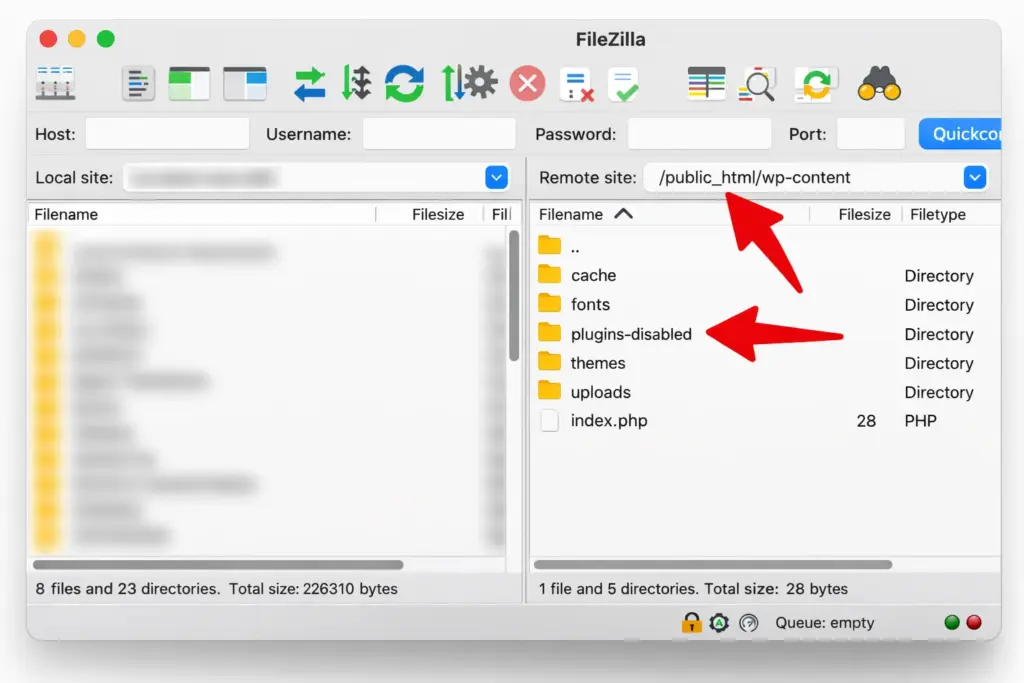
If you do not, use FTP or hosting file manager and rename the plugins folder:
/wp-content/plugins/
For example, change:
plugins
to
plugins-disabled
That instantly disables every plugin.
What to do after that
- refresh the site
- if it works again, a plugin caused the issue
- rename the folder back to
plugins - then reactivate plugins one by one until the error returns
Plugin troubleshooting logic
| Result | Meaning |
|---|---|
| Site works after deactivating plugins | One plugin caused the error |
| Site still broken | Theme, PHP, or core issue is more likely |
This is one of the most reliable ways to isolate plugin conflicts.
4. Switch to a Default WordPress Theme
If plugins are not the problem, your theme may be causing the fatal error.
If you can access the dashboard, activate a default WordPress theme such as:
- Twenty Twenty-Five
- Twenty Twenty-Four
- Twenty Twenty-Three
If you cannot access the dashboard, rename your active theme folder using FTP or file manager:
/wp-content/themes/
WordPress will try to fall back to a default theme if one is installed.
Why this works
If your active theme contains outdated or broken PHP code, changing themes can immediately remove the problem.
Theme testing results
| Result | Meaning |
|---|---|
| Site works with default theme | The old theme caused the issue |
| Site still broken | Problem is likely elsewhere |
If the theme is the issue, you may need to update it, replace it, or contact the developer.
5. Increase the PHP Memory Limit
If the error is caused by memory exhaustion, increasing the memory limit may solve it.
Add this line to wp-config.php:
define('WP_MEMORY_LIMIT', '256M');
For some sites, 256M is enough. Larger websites may need more depending on hosting and plugins.
Suggested memory levels
| Site Type | Suggested Memory |
|---|---|
| Small blog | 128M–256M |
| Business site | 256M |
| WooCommerce store | 256M–512M |
| Large content site | 256M–512M |
If your host enforces a lower limit, you may need to ask support to raise it at the server level.
6. Check and Update the PHP Version
An outdated PHP version can break newer plugins and themes. A newer PHP version can also break old code if the site has not been maintained properly.
WordPress works best on modern PHP versions, and many plugins now expect PHP 8.1 or higher.
Why PHP matters
| PHP Situation | Possible Result |
|---|---|
| Too old | New plugins may not work |
| Too new for old theme/plugin | Fatal compatibility errors |
| Updated without testing | Site can break unexpectedly |
Before changing PHP versions:
- create a backup
- test on staging if possible
- verify plugin and theme compatibility
A PHP version mismatch is a very common hidden cause of critical errors.
7. Reinstall WordPress Core Files
If plugins and themes are not the problem, your core WordPress files may be corrupted.
To fix that:
- Download a fresh copy of WordPress from WordPress.org
- Extract it on your computer
- Upload fresh copies of:
wp-adminwp-includes
- Replace the old versions on the server
Do not overwrite the wp-content folder, because that contains your themes, plugins, and uploads.
What this step fixes
| Problem | Can reinstalling core help? |
|---|---|
| Corrupted WordPress files | Yes |
| Failed update | Yes |
| Plugin conflict | No |
| Theme conflict | No |
This is a safe way to repair core files without touching your actual content.
8. Restore a Backup
If nothing else works, restoring a backup may be the fastest solution.
This is especially useful if:
- the error appeared right after an update
- you have a recent clean backup
- the site is critical and needs to come back fast
Backup restore options
| Backup Source | Use Case |
|---|---|
| Hosting backup | Fast full restore |
| Plugin backup | Easy if already configured |
| Manual backup | More technical but reliable |
Be aware that restoring a backup rolls the site back to the state it was in when the backup was created. That means newer changes may be lost.
How to Prevent WordPress Critical Errors
Fixing the error is important, but preventing it in the future is even better.
Back up before every update
This is one of the best habits you can build. If something breaks, a backup gives you a safety net.
Update one thing at a time
Avoid updating everything at once. If five plugins update together and the site breaks, it becomes harder to know which one caused it.
Use a staging site
A staging environment lets you test changes before applying them to the live site.
Choose better themes and plugins
Well-maintained tools from trusted developers are far less likely to cause serious compatibility issues.
Monitor your website
Uptime monitoring tools can alert you quickly when your site goes down, so you can act faster.
Best prevention habits
| Habit | Why It Helps |
|---|---|
| Daily backups | Easier recovery |
| One-at-a-time updates | Easier troubleshooting |
| Staging tests | Safer updates |
| Quality plugins/themes | Fewer code problems |
| Uptime monitoring | Faster detection |
Frequently Asked Questions
What does “There has been a critical error on this website” mean?
It means WordPress encountered a fatal PHP error and could not continue loading the page.
Will I lose my content because of this error?
Usually no. In most cases, your content is still safe in the database.
Can a plugin update cause this error?
Yes. Plugin conflicts and faulty updates are one of the most common causes.
Is recovery mode safe to use?
Yes. It is designed by WordPress to help you enter the dashboard and fix the problem.
Do I need FTP to fix it?
Not always. If recovery mode works, you may be able to solve it from the dashboard. If not, FTP or hosting file manager is often necessary.
Final Notes
The WordPress critical error looks alarming, but in most cases it is fixable. Usually, the real problem is one broken piece of code, not a destroyed website.
The best order to approach it is:
- check for recovery mode
- enable debug logging
- deactivate plugins
- test the theme
- increase memory if needed
- check PHP version
- reinstall core files if necessary
- restore backup as a last option
Most importantly, don’t panic. Your content is usually still there, and with a methodical approach, the site can often be restored fairly quickly.