
Follow Me On Social Media!



Okay, real talk — have you ever been on a website that took forever to load and just… left? Yeah, we all have. Now imagine that’s your site and that’s your potential customer bailing. Ouch.
That’s basically what Google’s Core Web Vitals are measuring. They’re a set of performance scores that tell you (and Google) how fast, stable, and responsive your WordPress site actually feels to real people. And here’s the kicker — these scores directly affect where you show up in search results. So yeah, they kind of matter.
The good news is WordPress is super flexible, and getting your scores into the “Good” zone is totally doable. Let’s break it all down in plain English.
First Things First: Know What You’re Actually Trying to Fix
Before you go installing every performance plugin you can find (we’ve all been there), take a breath and figure out what you’re actually optimizing for. Without a clear goal, you’ll end up with the marketing team asking for faster images, the dev team wanting leaner JavaScript, and your boss just yelling “make the Google score better!” — all at the same time.
Pick the one metric that matters most for your site, set a baseline, and measure everything against that. It sounds boring, but trust me, it’ll save you from a world of chaos.
The Tools You’ll Actually Want to Use
You can’t fix what you haven’t measured, so let’s talk about the best ways to see where your site stands.
Google PageSpeed Insights — Your New Best Friend
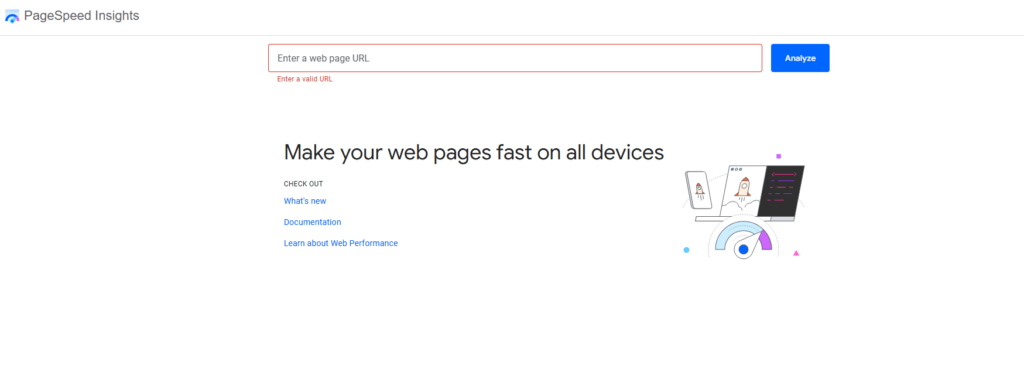
This is the tool you probably already know about, and honestly it’s a great place to start. Pop in your URL and it’ll spit out scores for your three main Core Web Vitals: LCP (how fast the big stuff loads), INP (how snappy it feels when you click things), and CLS (whether the page randomly jumps around while loading — super annoying). It even tells you what to fix. Free, fast, no excuses not to use it.
Google Lighthouse — For When You Want to Get Nerdy
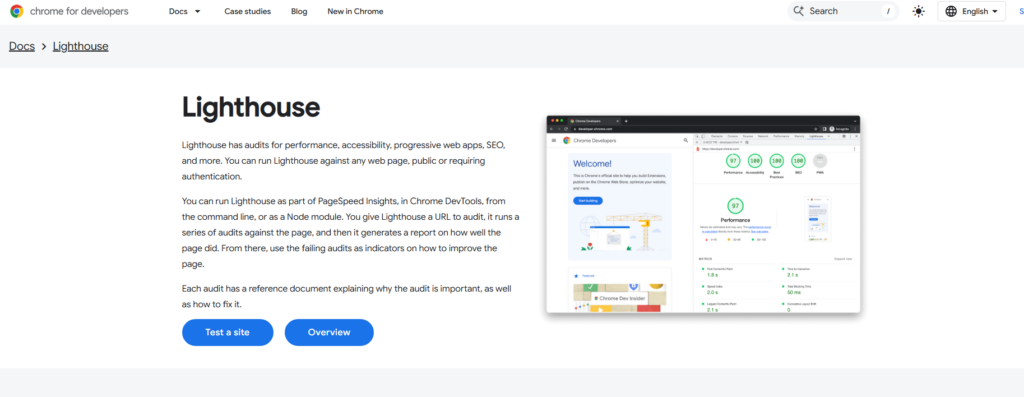
If PageSpeed Insights is the quick health check, Lighthouse is the full physical exam. It lives inside Chrome DevTools and digs way deeper — JavaScript bottlenecks, render-blocking resources, accessibility issues, the works. Pro tip: run it in an incognito window so your extensions don’t mess with the results.
Google Search Console — The “Real World” View
Here’s the thing about lab tools: they test your site under ideal conditions. Search Console shows you what actual users are experiencing on actual devices across actual network speeds. Its Core Web Vitals report flags which pages are struggling, so you can prioritize the ones that actually need attention. This is also the data Google uses when deciding where to rank you, so it’s kind of the most important one to pay attention to.
CrUX — The Big Picture Data
Chrome User Experience Report sounds fancy, but all it really means is “Google collected anonymous performance data from millions of real Chrome users and you can look at it.” It’s great for understanding how your site performs on slower devices and connections — you know, the ones your actual visitors might be using, not just your brand new MacBook on fiber internet.
New Relic — When the Problem Is the Server
Sometimes the frontend is perfectly fine and the issue is just… your server being slow. New Relic helps you dig into server-side stuff like Time to First Byte (TTFB) and database performance. Think of it as the tool you pull out when you’ve tried everything else and you’re like “okay, something is definitely wrong on the backend.”
How to Actually Improve Your Scores
Fixing LCP (a.k.a. “Why Does It Take So Long to Load?!”)
LCP measures how quickly the biggest visible thing on your page — usually a hero image or a big headline — shows up. If it’s slow, users are staring at a blank-ish screen and getting impatient. Here’s what to do about it:
Get a CDN. Seriously, if you don’t have one, get one. A Content Delivery Network serves your files from a server close to whoever’s loading your site. Without it, someone in Tokyo loading your site hosted in Texas is going to have a rough time.
Compress your images. Giant unoptimized images are the #1 LCP killer and honestly they’re so easy to fix. Use TinyPNG or a plugin like Smush, and switch to WebP format — same quality, way smaller file size. Also, lazy load images that are further down the page so the browser focuses on what’s actually visible first.
Stop blocking the page with CSS and JavaScript. If you’ve got scripts loading in the <head> of your page that don’t need to load immediately, they’re basically making your visitors wait around while your site does homework before it’s allowed to show them anything. Use async or defer on non-critical scripts. The Async JavaScript plugin makes this pretty painless in WordPress.
Make sure your server isn’t the bottleneck. A snappy frontend on a slow server is like putting a sports car engine in a broken-down truck. If your TTFB is high, hosting upgrades might need to be part of the conversation.
Fixing INP (a.k.a. “Why Does Nothing Respond When I Click It?”)
INP is the metric that replaced First Input Delay in 2024, and it’s stricter — instead of just measuring the first time you click something, it tracks all your interactions and reports the worst one. So if clicking your nav menu causes a half-second freeze, INP is going to know about it.
Slim down your JavaScript. Heavy JS bundles are almost always the culprit here. Audit what scripts you’re actually using, defer the ones that aren’t critical, and cut anything that’s just dead weight.
Be ruthless about third-party scripts. Ad platforms, chat widgets, social media embeds — they’re all competing for browser resources. Load them asynchronously or, better yet, ask yourself if you really need all of them in the first place.
Switch to a lighter theme. A lot of popular WordPress themes are bloated with features and scripts you’ll never use. Themes like GeneratePress or Astra are built to be lean and fast. If your current theme feels heavy, it probably is.
Clean up your database. WordPress accumulates junk over time — old post revisions, leftover transient data, orphaned metadata. It adds up and slows things down. WP-Optimize can automate the cleanup and keep things running smoothly.
Fixing CLS (a.k.a. “Why Does the Page Keep Jumping Around?!”)
CLS is the one that makes you click the wrong button because the page shifted at the last second. It’s maddening for users and it’s completely preventable.
Always set image and video dimensions. If your browser doesn’t know how big an image is before it loads, it’ll reserve zero space for it — then suddenly shift everything down when the image pops in. Just add width and height attributes and this problem basically disappears.
Be careful where you put ads. Ads above the fold are notorious for causing layout chaos because the browser doesn’t know their final size until the ad server decides. Push them further down the page where a shift won’t disrupt the main content, and use fixed-size containers.
Sort out your fonts. Custom fonts that load slowly make browsers do an awkward swap — they show a fallback font, then switch to the custom one, and everything shifts slightly as the spacing changes. The CSS fix is easy: use font-display: swap and the browser handles the transition gracefully.
Preload the important stuff. Use <link rel="preload"> to tell the browser “hey, I’m going to need this font and this hero image — load them early.” Getting ahead of these requests keeps your layout stable from the start.
Your Hosting Actually Matters — A Lot
Here’s something people don’t talk about enough: you can do everything right at the code level and still have bad Core Web Vitals if your hosting is garbage. Cheap shared hosting means your site is sharing resources with hundreds of other sites, and when things get busy, your server gets slow. There’s no plugin that fixes that.
Good hosting for WordPress performance looks like: container-based infrastructure with SSDs (so your resources are consistent, not shared), a built-in CDN with global coverage, multiple layers of caching (object caching, reverse proxy — the works), and monitoring tools so you can actually see what’s happening.
If your current hosting setup doesn’t support any of that, it might be time for a conversation about an upgrade. The application-level optimizations you make are only as good as the infrastructure they’re running on.
The Quick-Reference Checklist
Okay, here’s the TL;DR version you can screenshot and actually use:
- Measure first — PageSpeed Insights + Google Search Console, establish your baseline
- LCP — Get a CDN, compress images to WebP, lazy load, defer render-blocking scripts
- INP — Trim JavaScript, manage third-party scripts, use a lightweight theme, clean your database
- CLS — Set image dimensions, manage fonts with
font-display: swap, preload critical assets, fix ad placement - Hosting — Make sure your infrastructure can actually support the improvements you’re making
- Keep monitoring — This isn’t a one-and-done thing, check back regularly
The Bottom Line
Better Core Web Vitals means better rankings, happier visitors, and more conversions. That’s not a bad deal for what’s essentially just making your site work the way it should.
Start with your worst-performing page, run it through PageSpeed Insights, pick one thing to fix, and go from there. The milliseconds really do add up — and so do the results.
You’ve got this. 🚀
Tags: WordPress performance, Core Web Vitals, LCP INP CLS, WordPress speed tips, page experience, WordPress hosting