Follow Me On Social Media!



Changing the design of a website is something most WordPress users eventually do. Maybe your current theme looks outdated, maybe it loads slowly, or maybe you simply want a new style that better matches your brand.
When I changed my first WordPress theme years ago, I had the same worry most beginners have: “Will I lose my posts or pages?”
The good news is that WordPress separates content from design. Your articles, images, and pages are stored in the WordPress database, while the theme only controls how everything looks on the screen.
So switching themes usually takes only a couple of minutes. However, there are still a few things you should prepare before making the change. Some settings such as menus, widgets, or layout options may need to be adjusted afterward.
In this guide, I’ll walk you through everything you need to know about changing a WordPress theme safely, including preparation steps, the switching process, and what to check after the new theme is activated.
Table of Contents
What Happens When You Change a WordPress Theme?
A WordPress theme controls the visual appearance of your website. It determines things like:
- Page layout
- Colors and typography
- Header and footer design
- Sidebar placement
- Blog post styling
But the theme does not store your content. All your posts, pages, and images live inside the WordPress database.
That means you can change themes as many times as you want without losing your content.
However, some elements are theme-specific. When you switch themes, certain features might stop working or require reconfiguration.
What Stays Safe and What May Change
| Element | What Happens |
|---|---|
| Blog posts and pages | Always safe |
| Media library (images, videos) | Always safe |
| Users and comments | Always safe |
| Plugins and their data | Usually safe |
| Navigation menus | May need reassignment |
| Widgets | May move to inactive widgets |
| Theme shortcodes | May stop working |
| Theme page builders | May require rebuilding layouts |
The simple rule is:
If the feature comes from a plugin, it usually stays.
If it comes from the theme, it might disappear when you switch.
Before Changing Your Theme (Preparation Checklist)
Before activating a new theme, it’s a good idea to take a few precaution steps. Spending 10–15 minutes preparing can prevent hours of troubleshooting later.
1. Back Up Your Website
This is the most important step.
A full backup ensures you can restore your website if something goes wrong.
You can create backups using plugins such as:
| Backup Plugin | Pricing |
|---|---|
| UpdraftPlus | Free + Premium |
| Duplicator | Free / Pro |
| BackupBuddy | Paid |
Most hosting providers also include automatic daily backups.
2. Save Your Custom Code
If you added custom code to your theme, you should save it before switching.
Examples include:
- Custom CSS
- Code snippets in
functions.php - Tracking scripts
Copy these codes into a text document so you can add them again if necessary.
3. Take Screenshots of Your Website
It may sound simple, but screenshots are extremely helpful.
Capture screenshots of:
- Homepage layout
- Sidebar widgets
- Footer design
- Navigation menus
These screenshots help you recreate the same layout after activating the new theme.
4. Check Theme-Specific Features
Some themes include features that only work with that specific theme.
Examples include:
- Custom shortcodes
- Built-in sliders
- Portfolio sections
- Theme page builders
If your website relies heavily on these tools, switching themes may require rebuilding certain pages.
How to Change a WordPress Theme (Step-by-Step)
The easiest way to change a WordPress theme is directly from the WordPress dashboard.
The entire process usually takes less than two minutes.
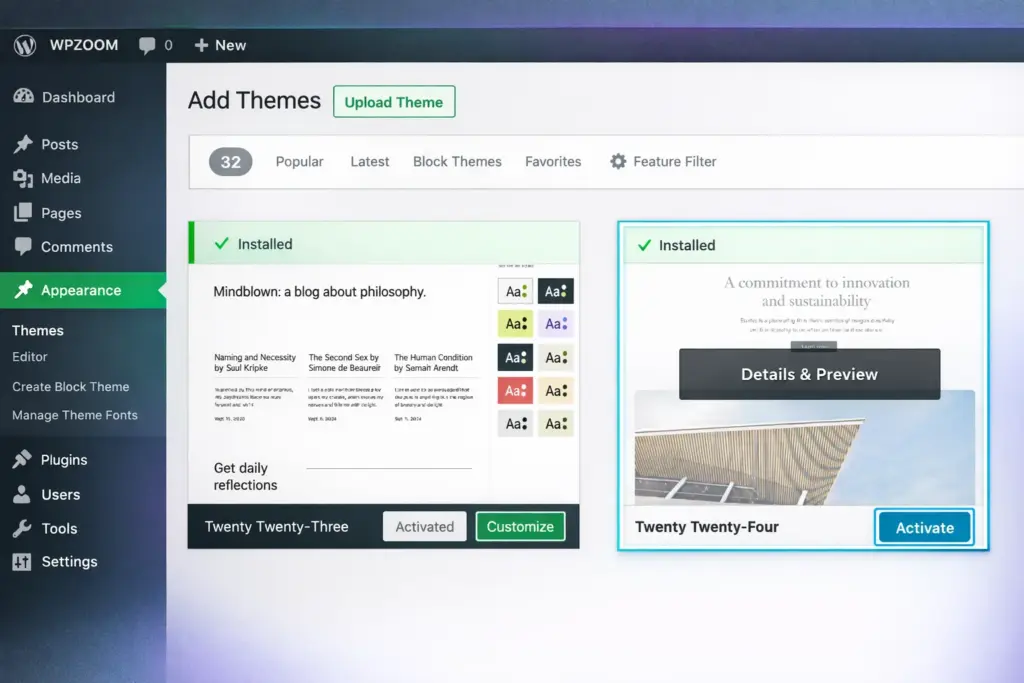
Step 1: Open the Themes Page
Log in to your WordPress dashboard and navigate to:
Appearance → Themes
Here you will see your currently active theme along with other installed themes.
Step 2: Install a New Theme

If you already installed your new theme, simply hover over it and click Activate.
If you want to install a new theme:
- Click Add New
- Search for a theme in the WordPress theme directory
- Click Install
If you purchased a premium theme, upload the .zip file using the Upload Theme button.
Step 3: Preview the Theme
Before activating the theme, you can preview it with your existing content.
Click Live Preview to see how your website will look with the new design.
This preview allows you to check:
- Page layout
- Typography
- Image sizes
- Navigation menu placement
If everything looks good, you can proceed with activation.
Step 4: Activate the Theme
Once you’re satisfied with the preview, click Activate.
Your website will immediately start using the new theme.
Changing Themes Using the Site Editor (Block Themes)
Newer WordPress themes use the Full Site Editor, which allows more visual customization.
To switch block themes:
- Go to Appearance → Themes
- Select the theme you want
- Click Preview
- Choose Preview with your content
- Click Activate
Block themes also allow editing headers, footers, and templates using drag-and-drop blocks.
Emergency Method: Changing a Theme via FTP
If a broken theme prevents you from accessing the WordPress dashboard, you can deactivate it through FTP.
Steps:
- Connect to your server using FTP software (like FileZilla)
- Navigate to
wp-content/themes/
- Rename the active theme folder
For example:
mytheme → mytheme-disabled
WordPress will automatically switch to the default theme.
After Changing Your Theme (Important Checklist)
Once the new theme is active, review your website carefully.
Here are some important things to check.
1. Verify Key Pages
Check important pages such as:
- Homepage
- Blog page
- Contact page
- Landing pages
Make sure layouts display correctly.
2. Check Navigation Menus
Sometimes menus need to be reassigned.
Go to:
Appearance → Menus
Assign the correct menu to the Primary Menu location.
3. Reconfigure Widgets
If your old theme had different widget areas, widgets may appear under Inactive Widgets.
You can drag them back into the sidebar or footer.
4. Test Forms and Buttons
Test important features like:
- Contact forms
- Newsletter forms
- Buttons and links
Layout changes may occasionally affect plugin styling.
5. Test Website Speed
Different themes load different scripts and styles.
Use tools such as:
| Speed Testing Tool | Purpose |
|---|---|
| Google PageSpeed Insights | Performance analysis |
| GTmetrix | Detailed speed reports |
| Pingdom | Server response monitoring |
If your new theme is slower, consider optimizing images, caching, or using a lightweight theme.
How to Choose the Right WordPress Theme
Choosing the right theme is important for both design and performance.
Here are a few factors to consider.
Key Features to Look For
| Feature | Why It Matters |
|---|---|
| Responsive design | Works on phones and tablets |
| Fast loading speed | Improves SEO and user experience |
| Regular updates | Ensures security and compatibility |
| Plugin compatibility | Works with essential plugins |
| Customization options | Allows design flexibility |
Avoid themes that are overly complex or packed with unnecessary features.
Lightweight themes usually perform better.
Frequently Asked Questions
Will I lose my content if I change my WordPress theme?
No. Posts, pages, images, and comments remain safe because they are stored in the WordPress database.
Can I switch back to my old theme?
Yes. WordPress keeps previously installed themes available. You can reactivate them anytime.
Does changing themes affect SEO?
It can affect factors like page speed, heading structure, and layout. However, SEO settings from plugins usually remain unchanged.
Should I test the new theme before going live?
Yes. Using a staging website is the safest way to test themes before applying them to your live site.
Final Thoughts
Changing a WordPress theme is much easier than many beginners expect. Your content remains safe because WordPress separates data from design.
Still, preparing your website before switching themes is essential. Backups, testing, and reviewing layout changes help ensure everything continues working smoothly.
To recap the process:
- Back up your website
- Save custom code and settings
- Preview the new theme
- Activate the theme
- Check menus, widgets, and layouts
With the right preparation, switching themes becomes a simple way to refresh your website design without risking your content.