
Follow Me On Social Media!



When you create a WordPress website, you usually install several themes while experimenting with different designs. It’s common to test multiple themes before deciding which one fits your website best. Over time, however, those unused themes remain installed on your website even though you no longer need them.
Many beginners ignore these extra themes, but keeping unnecessary themes installed is not recommended. Even if a theme is inactive, it still exists on your server and can potentially affect security or performance.
Removing unused themes is a simple maintenance task that helps keep your WordPress website clean, secure, and organized. It also ensures that your server storage is used efficiently.
In this guide, we will explain why removing unused themes is important and walk you through three simple methods you can use to delete a WordPress theme safely.
Table of Contents
Why You Should Delete Unused WordPress Themes
Before learning how to delete a theme, it’s helpful to understand why cleaning up unused themes is important for your website.
Many WordPress users believe that inactive themes have no impact on their website. While they do not affect your website’s appearance directly, they still remain installed on the server and can create potential issues.
Security Risks
One of the biggest concerns with unused themes is security. If a theme is outdated and no longer receives updates from the developer, it may contain vulnerabilities. Hackers sometimes target outdated themes to gain access to websites.
By removing themes you no longer use, you reduce the number of possible security risks.
Server Storage and Performance
Although themes usually don’t take up huge amounts of space, multiple unused themes can accumulate unnecessary files over time. Deleting them helps keep your website directory cleaner and easier to manage.
Better Website Management
When you have many themes installed, it can become confusing to manage your website. Cleaning up unused themes simplifies your dashboard and helps you focus only on the theme you actually use.
For these reasons, WordPress itself recommends keeping only one active theme and one backup theme installed.
Method 1: Delete a WordPress Theme From the Dashboard
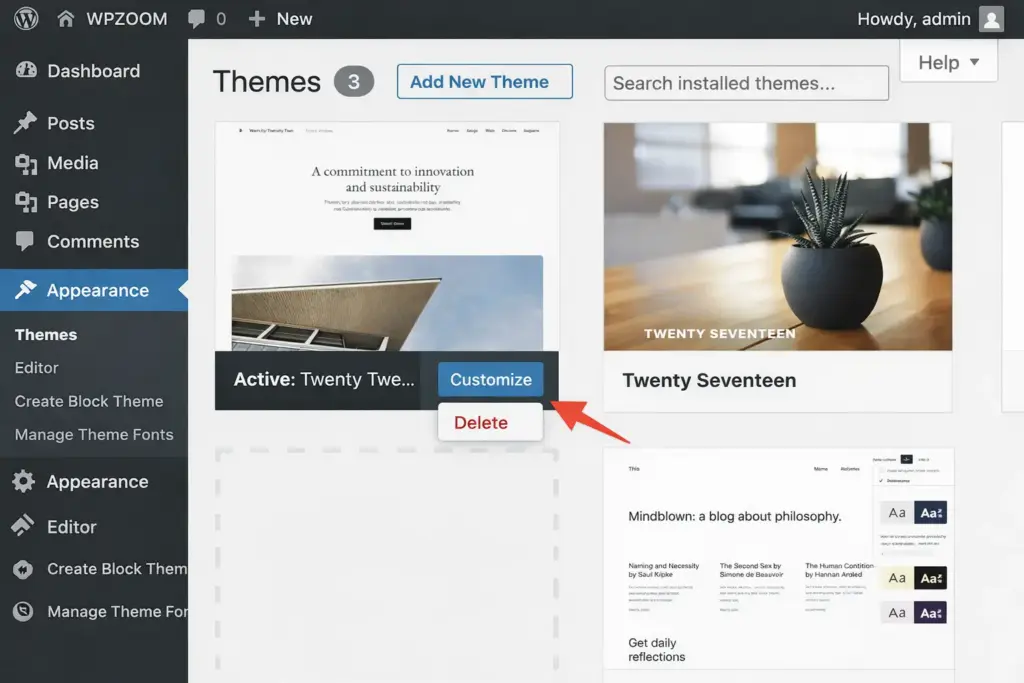
The easiest and most common way to remove a WordPress theme is directly through the WordPress dashboard. This method requires no technical knowledge and can be completed in less than a minute.
Step-by-Step Instructions
Follow these simple steps:
- Log in to your WordPress admin dashboard.
- Navigate to Appearance → Themes.
- You will see all the themes currently installed on your website.
- Click on the theme you want to remove.
- A theme details window will appear.
- In the bottom corner of the window, click the Delete button.
- Confirm the deletion.
Once you confirm the action, WordPress permanently removes the theme from your website.
Important Note
You cannot delete the theme that is currently active. If you want to remove your active theme, you must first activate another theme.
Example process:
Appearance → Themes → Activate another theme → Delete the old theme
Using the dashboard is the safest method because WordPress handles everything automatically.
Method 2: Delete a WordPress Theme Using FTP
Sometimes you may not be able to access the WordPress dashboard. This can happen if your website has a serious error or if a theme causes problems that prevent the dashboard from loading.
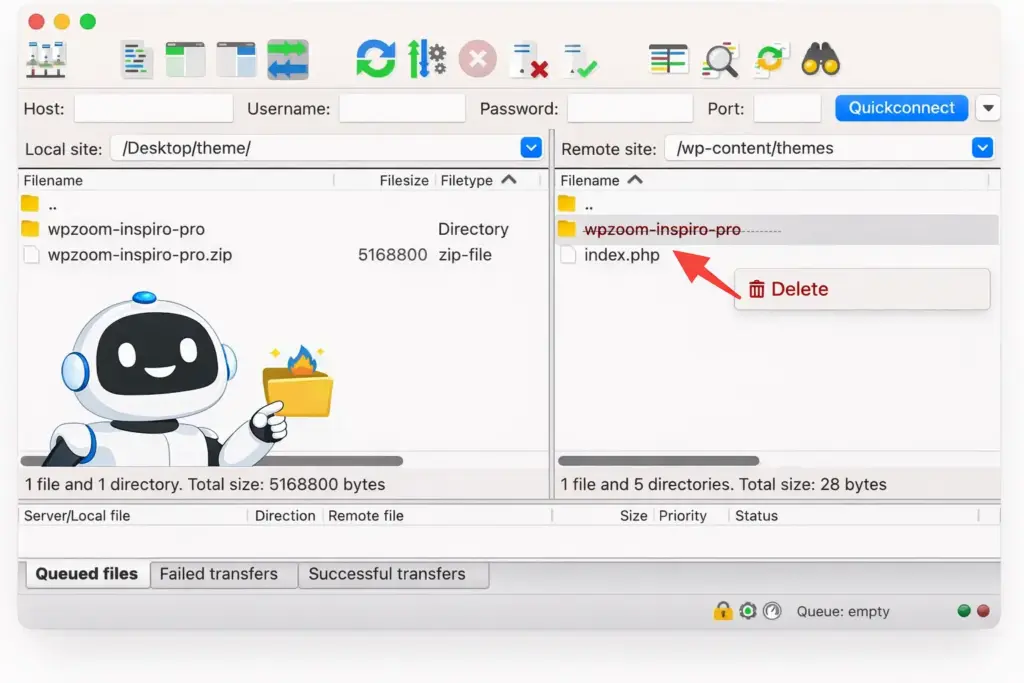
In these situations, you can remove the theme manually using FTP (File Transfer Protocol).
FTP allows you to connect directly to your website server and manage files.
What You Need
To use FTP, you will need:
- An FTP client such as FileZilla
- Your hosting FTP credentials
- Access to your WordPress installation directory
Steps to Delete a Theme via FTP
- Open your FTP client and connect to your hosting server.
- Navigate to your WordPress root folder.
- Locate the following directory:
wp-content/themes/
- Inside this folder, you will see folders for each installed theme.
- Find the folder of the theme you want to remove.
- Right-click the folder and select Delete.
Once the folder is removed, the theme will disappear from your WordPress installation.
When FTP Is Useful
FTP is particularly helpful when:
- Your website dashboard is inaccessible
- A theme causes a fatal error
- You need to remove corrupted theme files
Although this method requires a little technical knowledge, it is still straightforward once you understand the folder structure.
Method 3: Delete a WordPress Theme Using cPanel
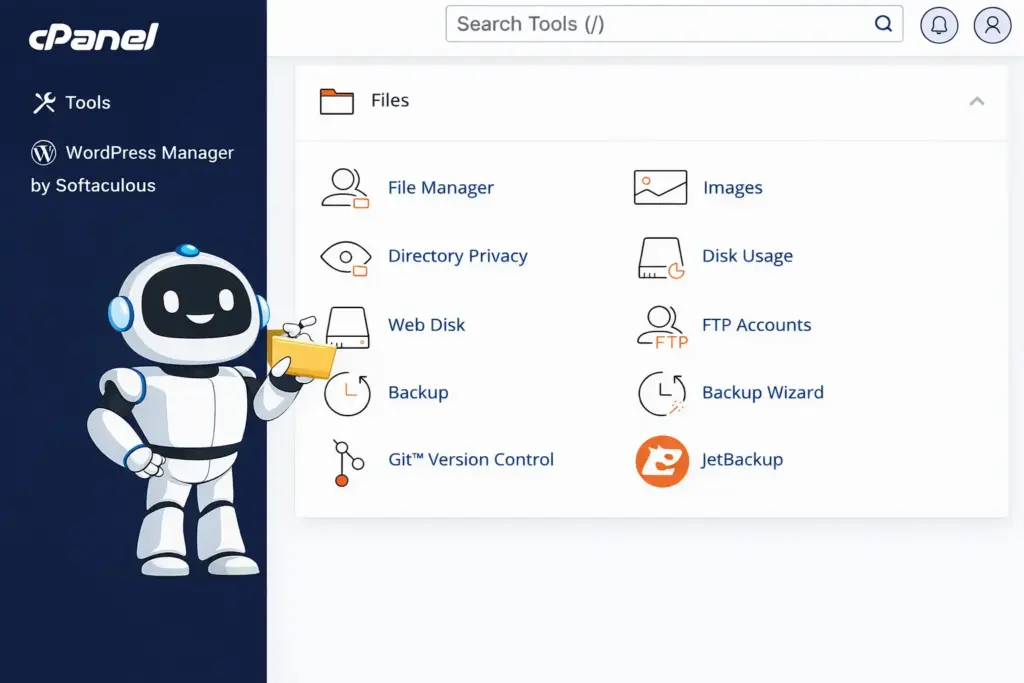
Another method for deleting a theme is using your hosting control panel, usually cPanel. This option works similarly to FTP but allows you to manage files directly through your browser.
Accessing the File Manager
To begin, log in to your hosting account and open the File Manager inside cPanel.
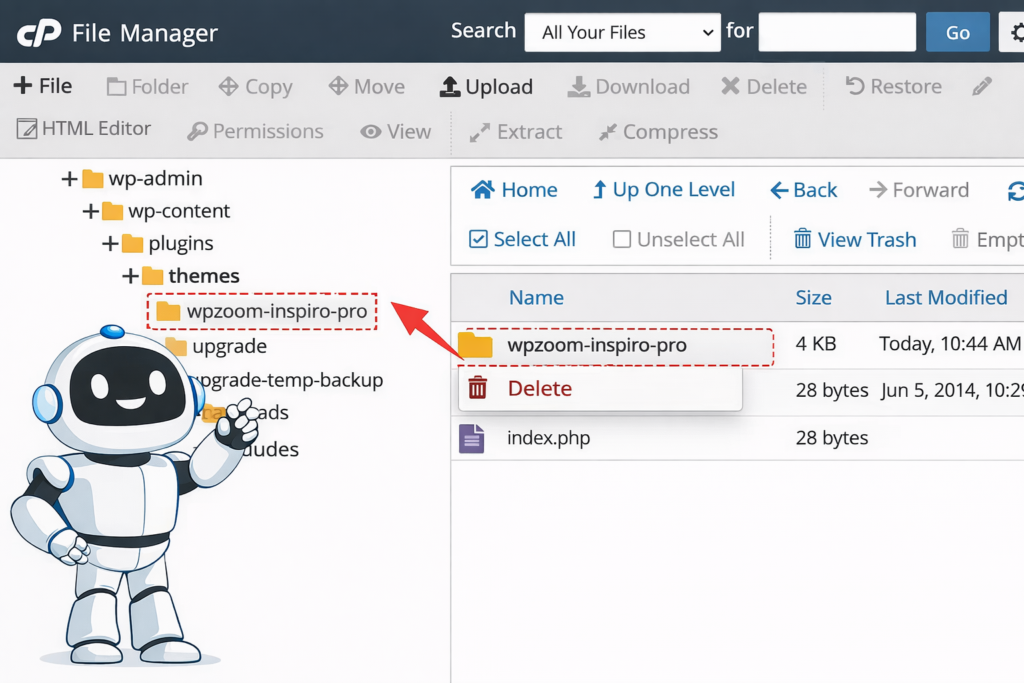
Steps to Remove a Theme Using cPanel
- Log in to your hosting dashboard.
- Open cPanel.
- Click on File Manager.
- Navigate to the WordPress themes folder:
public_html/wp-content/themes/
- Locate the folder of the theme you want to delete.
- Select the folder and click the Delete button.
After confirming the action, the theme files will be permanently removed from your server.
Advantages of Using cPanel
Using cPanel is convenient because:
- It doesn’t require external software like FTP clients
- It allows you to manage files directly from your browser
- It gives you full access to your website directory
This method is often used by website owners who regularly manage their hosting files.
What to Do After Deleting a Theme
Once a theme has been removed, it’s a good idea to review your website for any leftover elements related to that theme.
Some themes create additional resources such as images, widgets, or menus that may remain even after the theme itself is deleted.
Areas You Should Check
| Section | What to Review |
|---|---|
| Media Library | Remove unused images from the old theme |
| Widgets | Delete inactive widgets |
| Menus | Check navigation menus |
| Custom CSS | Remove theme-specific styles |
Cleaning up these leftover elements helps keep your website organized and prevents unnecessary clutter.
Tips Before Removing a WordPress Theme
Before deleting a theme, it’s always a good idea to take a few precautions. Even though the process is simple, small mistakes can affect your website if you are not careful.
Create a Backup
Always back up your website before making changes. This ensures that you can restore your site if something goes wrong.
Confirm the Theme Is Not Active
Make sure the theme you want to delete is not currently active.
Keep a Backup Theme
Many website owners keep one extra theme installed as a backup in case their main theme encounters problems.
Following these precautions helps ensure a smooth and safe cleanup process.
Final Thoughts
Deleting unused WordPress themes is a small but important part of website maintenance. Removing unnecessary themes helps keep your website secure, organized, and easier to manage.
There are three main ways to remove a WordPress theme:
- Through the WordPress dashboard
- Using an FTP client
- Through your hosting control panel
For most users, the dashboard method is the easiest option. However, FTP and cPanel methods are useful when you need direct access to your website files.
Regularly reviewing and cleaning up your themes ensures that your WordPress website remains efficient and secure over time.