Follow Me On Social Media!



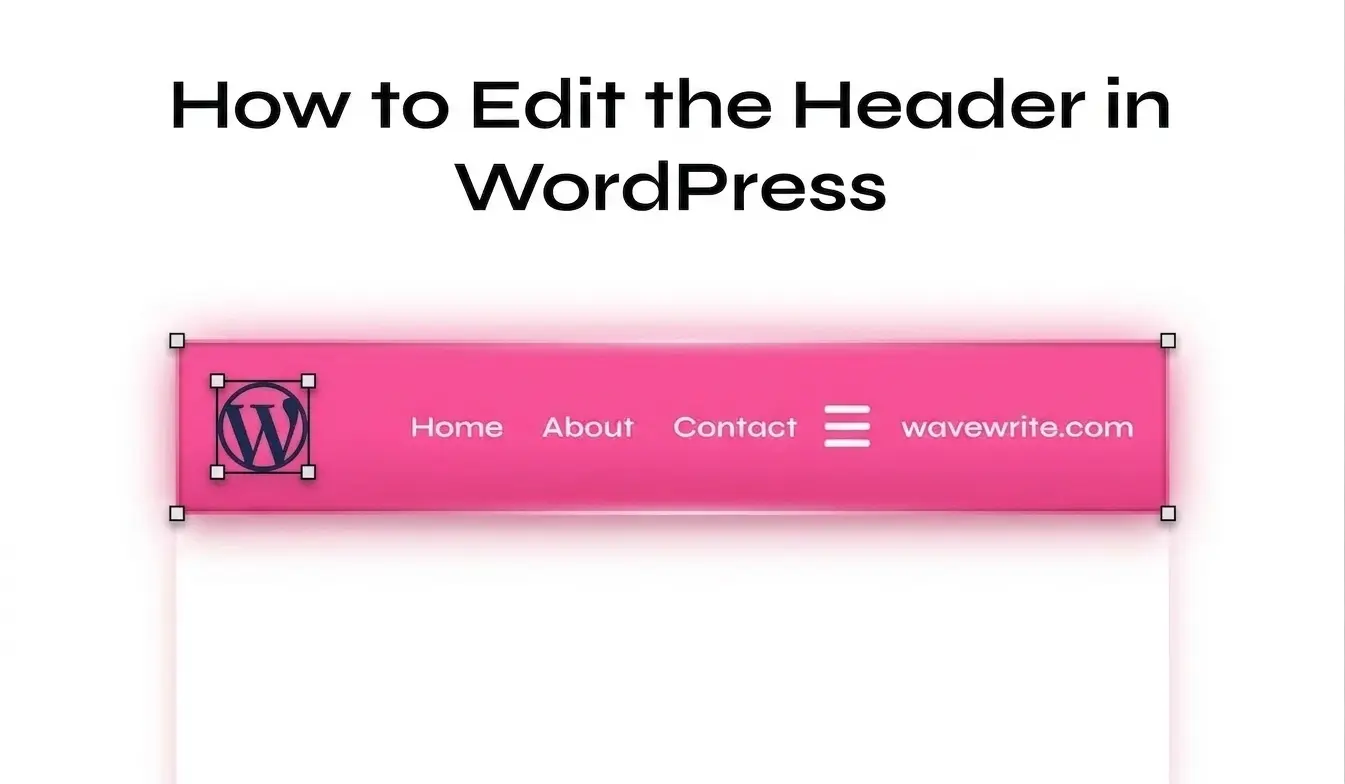
Your website header is the first thing people notice when they land on your site.
It’s where your logo lives.
It’s where your navigation menu sits.
And it’s what shapes your visitor’s first impression.
But here’s the problem…
Editing the header in WordPress can feel confusing because there isn’t just one method. The process depends on your theme, your setup, and sometimes even your plugins.
Don’t worry.
By the end of this guide, you’ll understand every way to edit your header, from beginner-friendly tools to advanced customization.
Table of Contents
What Is the WordPress Header?
The WordPress header is the top section of your website that appears across most (or all) pages.
It usually includes:
- Your site logo or name
- Navigation menu (Home, Blog, Contact…)
- Call-to-action buttons (Subscribe, Buy, etc.)
- Optional elements like search bar or social icons
Think of it as your website’s control center. It helps visitors navigate your content and understand your brand instantly.
Why Your Header Matters More Than You Think
A well-designed header can:
- Improve user experience (easy navigation)
- Increase conversions (clear buttons)
- Strengthen branding (logo + colors)
- Reduce bounce rate
A bad header?
Confusing menus, clutter, or poor design = people leave your site fast.
How to Identify Your Theme Type Before Editing
Before you change anything, you need to know what type of theme you’re using.
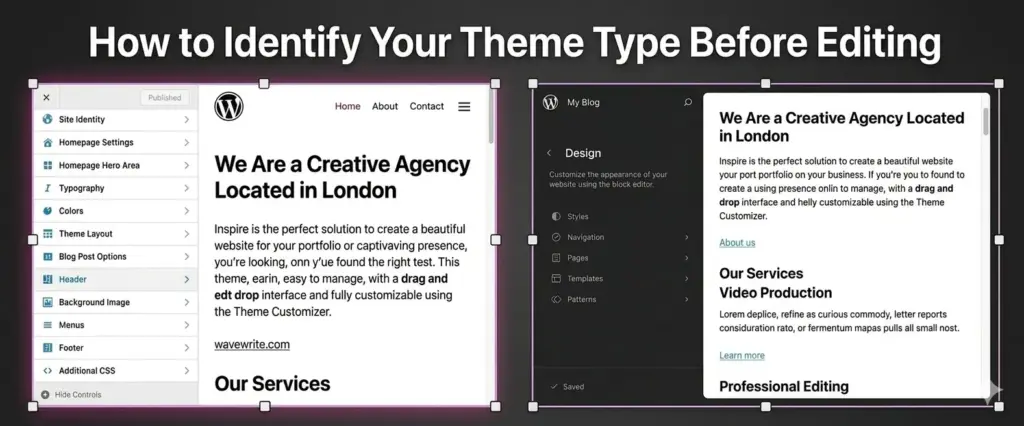
Because this decides how you edit your header.
Check Your Theme Type
Go to:
Dashboard → Appearance
- If you see Editor → you’re using a Block Theme
- If you see Customize → you’re using a Classic Theme
Why This Matters
Each type works differently:
| Theme Type | Editing Method | Difficulty | Flexibility |
|---|---|---|---|
| Block Theme | Site Editor | Easy | Very High |
| Classic Theme | Customizer | Easy | Medium |
| Page Builder | Plugin-based | Medium | Very High |
| Code Method | Files (PHP) | Hard | Maximum |
How to Edit the Header in a Block Theme (Site Editor)
If you’re using a modern WordPress theme (like Twenty Twenty-Five), you’ll use the Site Editor.
This is the easiest and most powerful method.
Step-by-Step
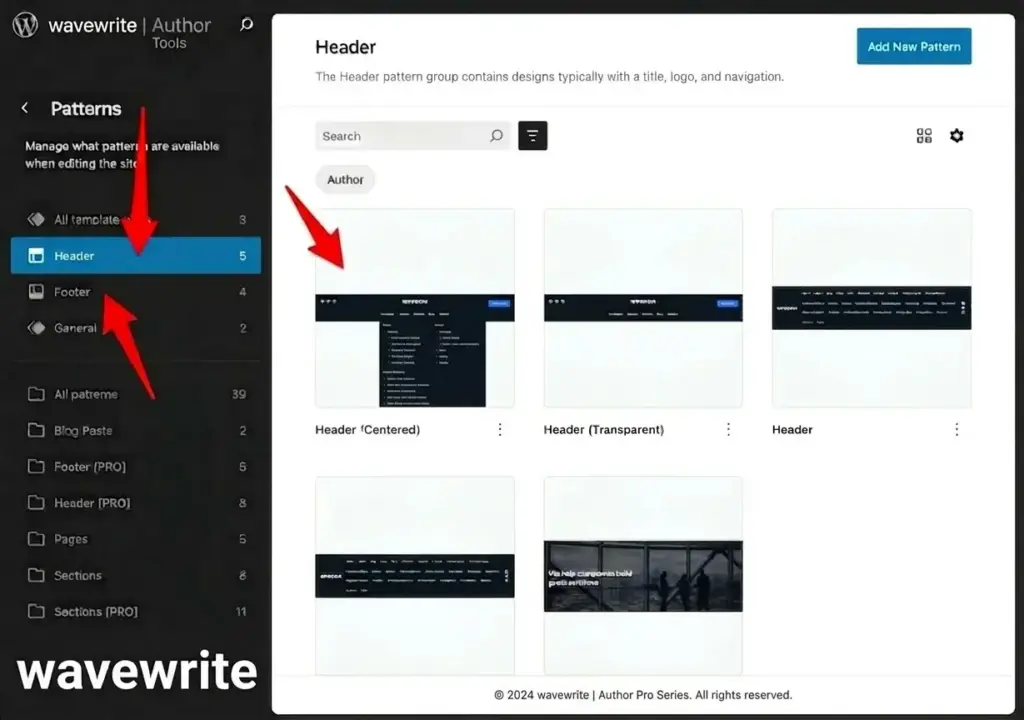
- Go to Appearance → Editor
- Click Patterns
- Find Header (Template Parts)
- Click Edit
What You Can Do Here
You can fully customize your header using blocks:
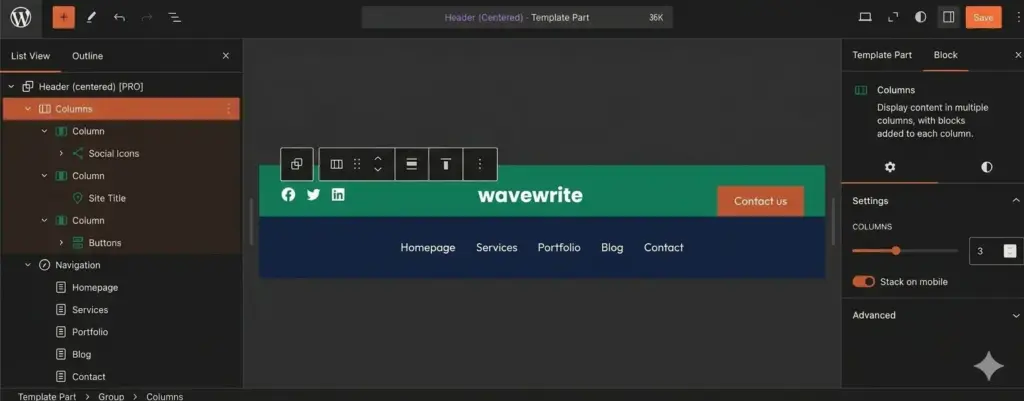
- Add logo → Site Logo block
- Edit menu → Navigation block
- Add button → Button block
- Add icons → Social Icons block
Pro Tip
Use List View (☰ icon) to easily rearrange elements.
Styling Options
You can change:
- Colors
- Fonts
- Spacing
- Layout
Everything is visual — no coding needed.
Using Pre-Made Header Designs (Patterns)
Don’t want to design from scratch?
WordPress gives you ready-made header templates.
How to Use Them
- Open header editor
- Click 3 dots (⋮)
- Select Replace Header
- Choose a design
This saves a ton of time and gives you a professional layout instantly.
Creating Different Headers for Different Pages
This is where block themes become powerful.
You can create:
- A simple header for homepage
- A detailed header for blog pages
- A sales-focused header for landing pages
How to Do It
- Go to Appearance → Editor → Patterns
- Click Add Template Part
- Choose Header
- Design it
- Assign it to a specific page/template
How to Edit the Header in a Classic Theme (Customizer)
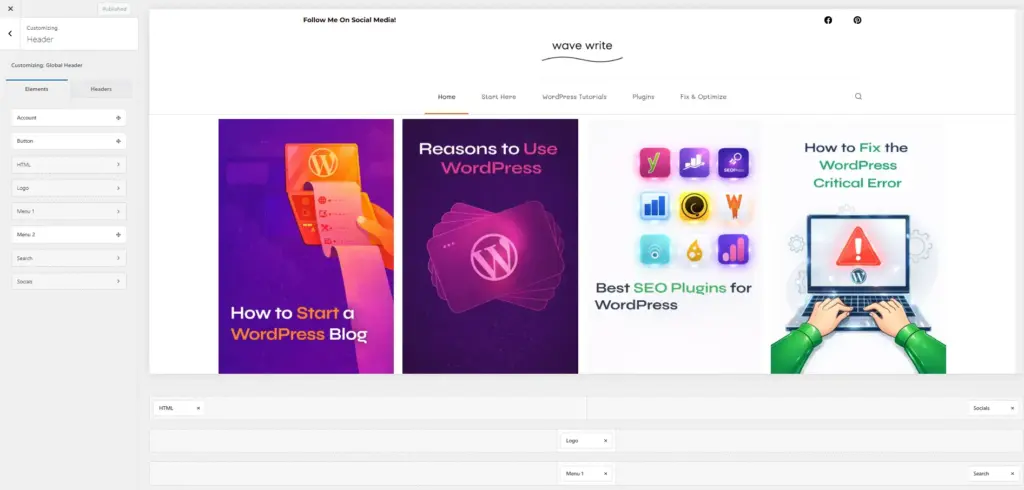
If your theme is older or more traditional, you’ll use the Customizer.
Steps
- Go to Appearance → Customize
- Look for:
- Header Options
- Header & Navigation
- Layout
What You Can Edit
- Logo position
- Menu layout
- Header height
- Sticky header toggle
Real-Time Preview
You’ll see changes instantly before publishing.
Editing Site Identity (Logo, Title, Tagline)
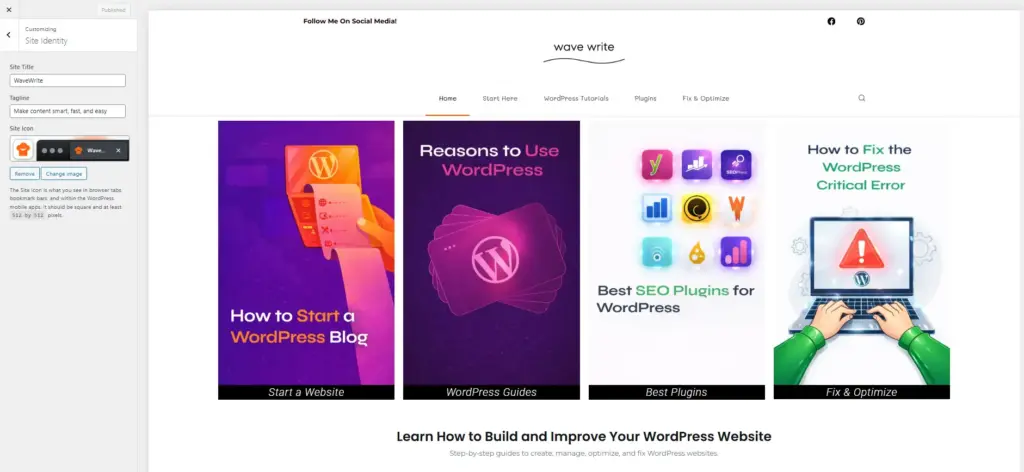
This is the most basic but important part.
Steps
- Go to Customize → Site Identity
- Upload logo
- Edit:
- Site title
- Tagline
Extra Tip
Add a favicon (site icon) — it appears in browser tabs.
Editing the Navigation Menu
Your header menu controls how users navigate your site.
Steps
- Go to Appearance → Menus
- Select your main menu
- Add or remove pages
- Drag to reorder
Best Practices
- Keep it simple (5–7 items max)
- Use clear names (Blog, Contact, About)
- Avoid clutter
How to Edit the Header with a Page Builder
If you want full control, use a page builder like
Elementor
What You Can Do
- Design header from scratch
- Add animations
- Create advanced layouts
- Show different headers on different pages
Steps (Elementor Example)
- Go to Elementor → Theme Builder
- Select Header
- Click Add New
- Design using drag & drop
- Set display conditions
When to Use This
- You want a custom design
- Your theme is too limited
- You build landing pages
How to Edit header.php (Advanced Method)
This is for advanced users only.
When You Should Use It
- You need to modify structure
- You want to add custom HTML
- You need full control
Important Warning ⚠️
Never edit your main theme directly.
Always use a child theme.
Steps
- Go to Appearance → Theme File Editor
- Open
header.php - Make changes
- Save
Adding Code Without Editing Files (Safer Method)
Instead of editing files, use plugins like:
- WPCode
Benefits
- No risk of breaking site
- Works after updates
- Easy to manage
Common Header Customizations
Here are the most popular changes you’ll likely make:
1. Change Logo
- Block theme → Edit Site Logo block
- Classic → Customize → Site Identity
2. Make Header Sticky
A sticky header stays visible while scrolling.
- Block theme → Set position to Sticky
- Classic → Enable in theme settings or use CSS
3. Change Colors
- Background color
- Text color
- Menu hover effects
This helps match your branding.
4. Edit Menu Layout
- Add dropdowns
- Reorder items
- Add custom links
5. Optimize for Mobile
Most users are on phones.
Make sure:
- Menu is easy to open
- Text is readable
- Logo is not too big
Frequently Asked Questions
Can I use different headers on different pages?
Yes (especially with block themes or page builders).
Will header changes affect all pages?
Usually yes — unless you create separate templates.
What’s the difference between header and <head>?
- Header → visible design
<head>→ hidden code (SEO, scripts)
Is coding required?
No. Most users can fully customize headers without coding.
Final Thoughts
Editing your WordPress header might seem confusing at first…
But once you understand your theme type, everything becomes simple.
Quick Recap
- Use Site Editor for block themes
- Use Customizer for classic themes
- Use page builders for full control
- Use code only if needed
A clean, well-designed header can:
- Improve SEO
- Increase conversions
- Make your site look professional
Take your time, test different layouts, and build something that truly represents your brand. 🚀