
Follow Me On Social Media!



When working inside the WordPress dashboard, you might occasionally run into an error that says:
“The link you followed has expired. Please try again.”
This message often appears when you try to upload a theme, install a plugin, or perform an update. At first glance, it may look like something serious is broken in your website. Fortunately, in most cases, the issue is related to server limits or expired security tokens and can be fixed in just a few minutes.
In this guide, we’ll walk through what this error actually means, why it happens, and several proven ways to fix it. Each solution starts with the simplest method and gradually moves toward more technical fixes, so you can resolve the issue quickly without unnecessary troubleshooting.
Table of Contents
What Does “The Link You Followed Has Expired” Mean?
The “link you followed has expired” message is a security-related error generated by WordPress. It usually appears inside the admin panel when WordPress rejects a request because the system believes the action is no longer valid.
WordPress uses a security mechanism called a nonce (short for “number used once”). This temporary token verifies that actions like uploading files or updating plugins are coming from a legitimate logged-in user.
These tokens are time-sensitive. If the token expires before the action finishes, WordPress cancels the request and displays the error message.
This can happen during several common actions:
- uploading themes or plugins manually
- updating WordPress core files
- submitting large forms in the admin dashboard
- uploading large media files
- installing page builder templates
In many cases, the upload page was simply left open for too long before clicking the Install or Upload button. When that happens, the token attached to the page becomes invalid.
While the message can feel alarming, it usually does not indicate a security breach or broken site. Instead, it signals that the request needs to be refreshed or that the server configuration needs adjustment.
What Causes This Error?
There are several reasons WordPress may display this error. Understanding the cause will help you apply the correct fix more quickly.
Here are the most common triggers:
| Cause | Explanation |
|---|---|
| Expired session | The page was left open and the security token expired |
| Upload size limits | The file you’re uploading exceeds the server limit |
| Low PHP memory | The server cannot allocate enough memory to complete the task |
| Execution timeout | The process runs longer than the server allows |
| Cached admin page | A caching plugin served a page containing an outdated token |
Most WordPress hosting environments set conservative limits to protect server resources. When those limits are reached during uploads or installations, WordPress may show this error instead of a more detailed message.
Premium themes, large plugins, or demo packages are especially likely to trigger it because they can exceed default upload limits on shared hosting plans.
Fix 1: Clear Your Browser Cache and Cookies
One of the fastest solutions is clearing your browser cache and cookies. While this may seem unrelated at first, it can solve the issue surprisingly often.
Browsers store cached versions of web pages to speed up loading times. If your browser loads a cached version of the WordPress upload page, it may also load an expired security token embedded in that page.
When you attempt to submit the form, WordPress sees the token as invalid and returns the “link expired” message.
Clearing your cache forces the browser to load a fresh version of the page with a new token.
Steps for Google Chrome
- Press Ctrl + Shift + Delete (Windows) or Cmd + Shift + Delete (Mac).
- Set the time range to All time.
- Check Cookies and other site data and Cached images and files.
- Click Clear data.
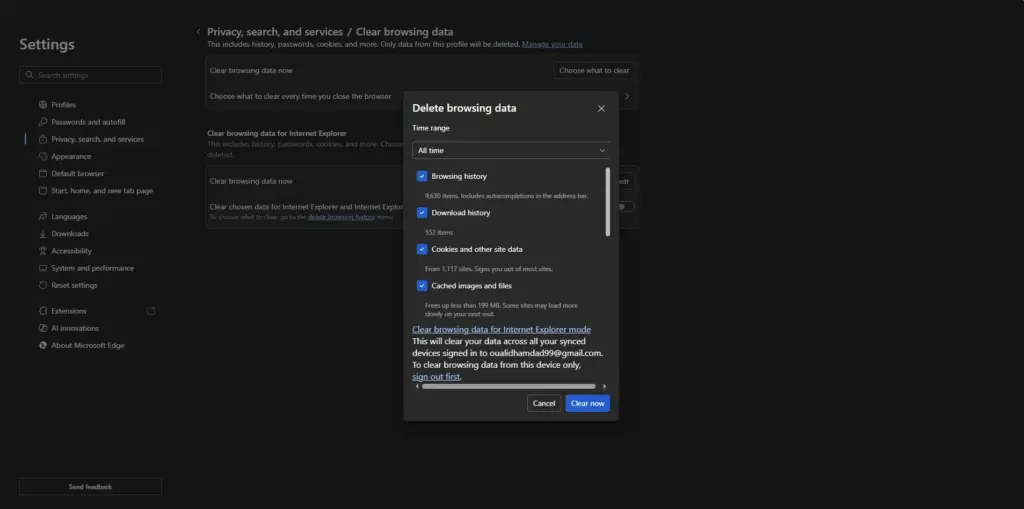
After clearing the cache:
- close the WordPress admin tab
- reopen the dashboard
- reload the upload page
- upload the file immediately
This solution works best when the error happens because the page was left open for too long.
Fix 2: Increase the File Upload Size Limit
One of the most common causes of this error occurs when the file being uploaded is larger than your server allows.
Every hosting environment has limits that control how large uploaded files can be. Two PHP settings manage these limits:
| Setting | Purpose |
|---|---|
| upload_max_filesize | Maximum size of a single uploaded file |
| post_max_size | Maximum size of the entire form submission |
If your file exceeds either limit, PHP rejects the upload before WordPress can process it.
For many shared hosting accounts, the default upload limit is only 8MB, which is often too small for premium themes or complex plugins.
Recommended values for most WordPress websites:
upload_max_filesize = 64M
post_max_size = 128M
Increasing limits through your hosting panel
If your host uses cPanel or a similar dashboard:
- Log in to your hosting control panel.
- Open PHP Settings or Select PHP Version.
- Locate the upload size settings.
- Increase the values to at least 64MB and 128MB.
- Save the changes.
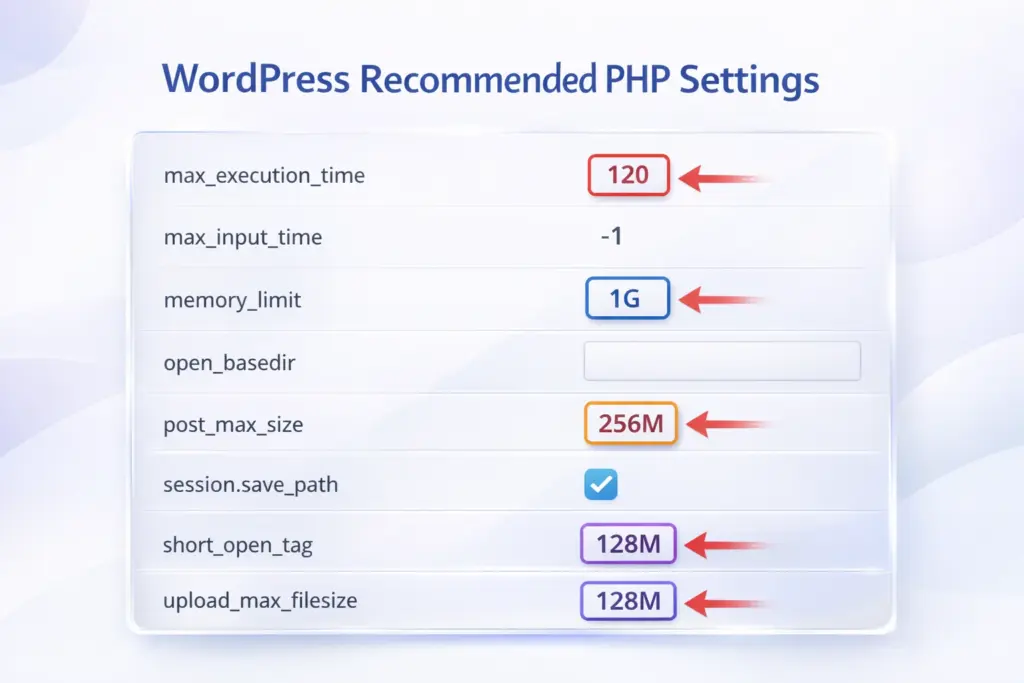
After updating the limits, return to WordPress and attempt the upload again.
Fix 3: Increase PHP Memory Limit and Execution Time
Even if the file size limit is sufficient, the server may still fail if it does not have enough memory or processing time to complete the operation.
Two additional PHP settings affect this process.
| Setting | Description |
|---|---|
| memory_limit | Maximum memory PHP can allocate to a process |
| max_execution_time | Maximum time PHP can run a script |
If your server stops the script before it finishes uploading the file, WordPress may trigger the expired link error.
Recommended values:
memory_limit = 256M
max_execution_time = 300
Editing wp-config.php
You can increase these values by adding the following lines to your wp-config.php file:
@ini_set('memory_limit', '256M');
set_time_limit(300);
This allows WordPress to allocate more memory and run the upload process longer.
These adjustments are especially helpful when uploading large themes, demo packages, or plugin bundles.
Fix 4: Disable Your Caching Plugin
Caching plugins improve website performance by storing copies of pages. However, they can sometimes cause problems inside the WordPress admin panel.
If a caching plugin stores a version of the upload page that contains an expired security token, every attempt to use that page will fail.
Popular caching plugins that may cause this include:
- WP Rocket
- LiteSpeed Cache
- W3 Total Cache
- WP Super Cache
To test whether the plugin is responsible:
- Go to Plugins → Installed Plugins
- Deactivate your caching plugin
- Attempt the upload again
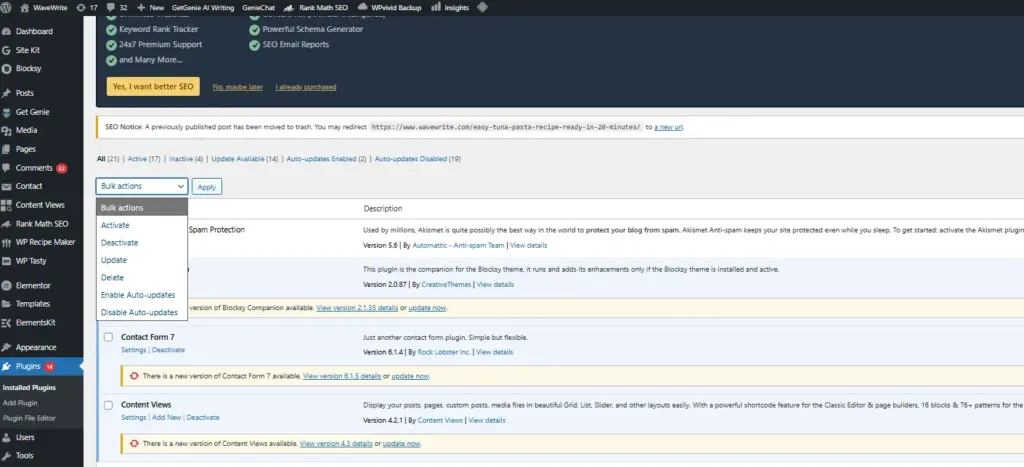
If the upload works after disabling the plugin, you should check the plugin settings and ensure the WordPress admin area is excluded from caching.
This prevents cached admin pages from storing outdated tokens.
Fix 5: Edit PHP Configuration Files Directly
If the previous solutions didn’t resolve the issue, you may need to update your server configuration manually.
These settings can be applied in one of several files depending on your hosting environment:
- php.ini
- wp-config.php
- .htaccess
Editing these files allows you to adjust multiple PHP limits at once.
Example php.ini configuration
upload_max_filesize = 64M
post_max_size = 128M
memory_limit = 256M
max_execution_time = 300
Example .htaccess configuration
php_value upload_max_filesize 64M
php_value post_max_size 128M
php_value memory_limit 256M
php_value max_execution_time 300
Before making any edits, always create a backup copy of the file. This ensures you can restore your site if a configuration change causes problems.
Some managed WordPress hosts restrict direct file editing. In those cases, you may need to change these settings through the hosting dashboard or contact support.
Fix 6: Refresh Your WordPress Permalinks
Occasionally, corrupted rewrite rules can contribute to URL-related issues in WordPress.
Refreshing your permalink settings forces WordPress to regenerate these rules automatically.
Steps
- Go to Settings → Permalinks in the WordPress dashboard.
- Click Save Changes without altering anything.
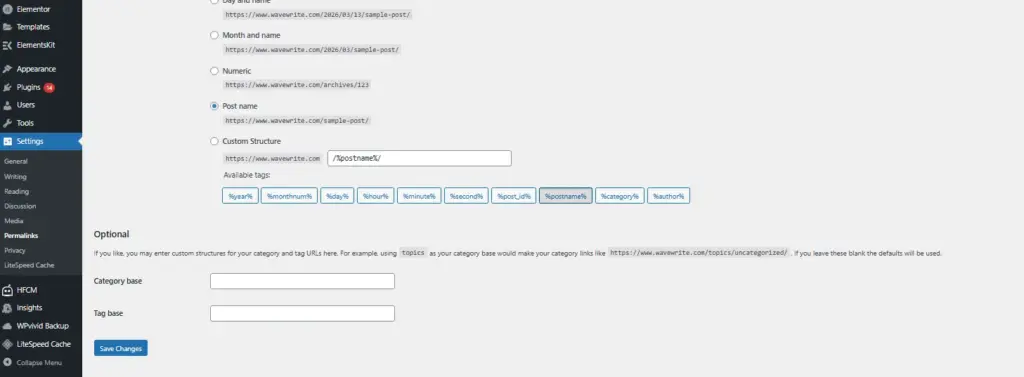
This process rebuilds the .htaccess rules used by WordPress and can resolve minor routing errors.
Although this fix may not solve the issue in every case, it is quick and harmless, making it worth trying if other methods only partially solve the problem.
Frequently Asked Questions
Why does this error appear when installing themes?
Premium WordPress themes often include large files such as page builder templates, demo content, images, and scripts. These packages can exceed default upload limits set by many hosting providers.
Increasing the upload size limit usually resolves the problem immediately.
Can this error affect my website visitors?
No. This error appears only inside the WordPress admin panel during specific actions such as uploads or updates.
Your website’s front end remains accessible to visitors while you troubleshoot the issue.
Why do some hosting providers show this error more often?
Shared hosting environments typically set lower PHP limits to manage resources across many websites.
Managed WordPress hosts usually configure higher limits, which reduces the chances of encountering this error.
Summary
The “The link you followed has expired” error is usually caused by one of three things:
- an expired security token
- server limits that are too low
- caching conflicts inside the admin area
Most users can resolve the issue by following these steps:
- Clear browser cache and reload the page
- Increase file upload size limits
- Increase PHP memory and execution time
- Disable caching plugins temporarily
- Update PHP settings through configuration files
- Refresh WordPress permalink rules
If the problem continues, your hosting provider may need to adjust server-level limits for your account.
Once those limits are increased, WordPress should be able to handle uploads and updates without triggering the error again.