Follow Me On Social Media!



WordPress permalinks may sound like a small technical setting, but they have a real impact on how your website performs. A good permalink structure helps search engines understand your content, makes your links easier for people to read, and keeps your site organized as it grows.
In simple terms, permalinks are the permanent web addresses for your posts, pages, products, categories, and other content. They are the URLs people click, copy, share, and see in search results. When those URLs are clean and descriptive, your website instantly looks more professional and easier to trust.
This guide covers everything you need to know about WordPress permalinks, from the basics to advanced options. You’ll learn which structure is best for SEO, how to change permalinks safely, what to do for WooCommerce stores, and how to avoid the mistakes that can lead to broken links or traffic loss.
Table of Contents
What Is a Permalink in WordPress?
A permalink is the fixed URL used to access a specific piece of content on your website. In WordPress, every post, page, category, tag, and product has its own permalink.
For example, a basic WordPress URL might look like this:
yoursite.com/?p=123
A more user-friendly permalink would look like this:
yoursite.com/wordpress-speed-tips/
Both links lead to content, but the second one is far easier to understand. It tells both search engines and visitors what the page is about before they even click it.
That is why permalinks matter. They are not just technical settings in the background. They affect clarity, usability, and search visibility.
Permalinks vs Regular URLs
Every permalink is a URL, but not every URL works like a permalink.
A regular URL can include random parameters, tracking codes, or temporary structures that are not designed for long-term use. A permalink, on the other hand, is meant to stay stable over time. It acts as the permanent address for your content.
This difference matters because search engines prefer clear and consistent addresses. Users do too. When someone sees a readable URL, they are much more likely to trust it.
Here is a quick comparison:
| Type | Example | Main Issue or Benefit |
|---|---|---|
| Generic URL | yoursite.com/?p=123 | Gives no clue about the content |
| SEO-friendly permalink | yoursite.com/wordpress-backup-guide/ | Clear, readable, and easier to trust |
A well-structured permalink is easier to share, easier to remember, and more useful in search results.
Slug vs Permalink Structure: What’s the Difference?
These two terms are often confused, but they are not the same thing.
The permalink structure is the overall format your website uses for URLs. For example, WordPress can generate links based on post names, dates, categories, or custom combinations.
The slug is the specific part at the end of the URL that identifies one piece of content.
In this URL:
yoursite.com/seo-tips-for-beginners/
The slug is:
seo-tips-for-beginners
That slug belongs only to that specific page or post. You can edit it without changing your entire site’s permalink settings.
This gives you flexibility. You can keep one global permalink structure for your whole site while still fine-tuning individual URLs for clarity and SEO.
Why Permalinks Matter for SEO and User Experience
Permalinks may seem simple, but they influence several important parts of your website.
Search engines use URLs as a contextual signal. A URL like /wordpress-security-checklist/ gives immediate clues about the page topic. It helps search engines categorize your content faster and more accurately.
At the same time, users feel more comfortable clicking clear links than messy ones. A readable URL looks safer, more professional, and easier to understand.
Here’s how good permalinks help:
- They make search results more readable
- They improve click confidence
- They help visitors understand the page topic
- They support better internal organization
- They are easier to share and remember
For example, if someone lands on a URL like:
yoursite.com/travel/europe/italy-budget-guide/
they can immediately understand that the page belongs to a travel section, then Europe, then Italy. That kind of structure helps both humans and search engines make sense of your website.
WordPress Permalink Structure Options Explained
WordPress includes several built-in permalink settings. Some are fine for special cases, but others are not ideal for most websites.
Let’s go through them one by one.
Plain
Example:
yoursite.com/?p=123
This is the default on some WordPress installations, but it is usually the weakest option. It does not describe the content, it looks less trustworthy, and it offers almost no SEO value.
Day and Name
Example:
yoursite.com/2026/03/12/post-name/
This format includes the full publication date. It can work for news sites or content where timing matters, but it is often a poor fit for evergreen content. An article may still be useful years later, but the date in the URL can make it look old.
Month and Name
Example:
yoursite.com/2026/03/post-name/
This is slightly shorter than the full date format, but it still carries the same issue. It makes content look tied to a specific time, even when it remains relevant.
Numeric
Example:
yoursite.com/archives/123/
This is short, but it is not descriptive. It does not help SEO much, and it is not very useful for visitors.
Post Name
Example:
yoursite.com/post-name/
For most websites, this is the best choice. It is clean, easy to read, and keeps the focus on the topic instead of dates or IDs.
Custom Structure
Example:
yoursite.com/blog/%postname%/
Custom structures let you build URLs using WordPress tags such as %postname%, %category%, %year%, and more.
This can be useful if you want a specific system for content organization, but it should still stay simple.
Here’s a quick overview:
| Structure | Example | Best For |
|---|---|---|
| Plain | /?p=123 | Rarely recommended |
| Day and Name | /2026/03/12/post-name/ | News or time-sensitive content |
| Month and Name | /2026/03/post-name/ | Some blogs, but often unnecessary |
| Numeric | /archives/123/ | Limited use cases |
| Post Name | /post-name/ | Best choice for most sites |
| Custom | /blog/%postname%/ | Sites needing custom organization |
For most blogs, business websites, affiliate sites, and content-focused WordPress websites, Post Name is usually the safest and most SEO-friendly option.
How to Change WordPress Permalink Settings Safely
Changing permalinks is simple inside WordPress, but doing it on an existing site requires care. If your site is already live and indexed by Google, changing URLs without proper redirects can lead to broken links and lost traffic.
Before changing anything, take these steps:
- Back up your full website
- Save a list of important current URLs
- Identify your top traffic pages
- Prepare to add redirects if needed
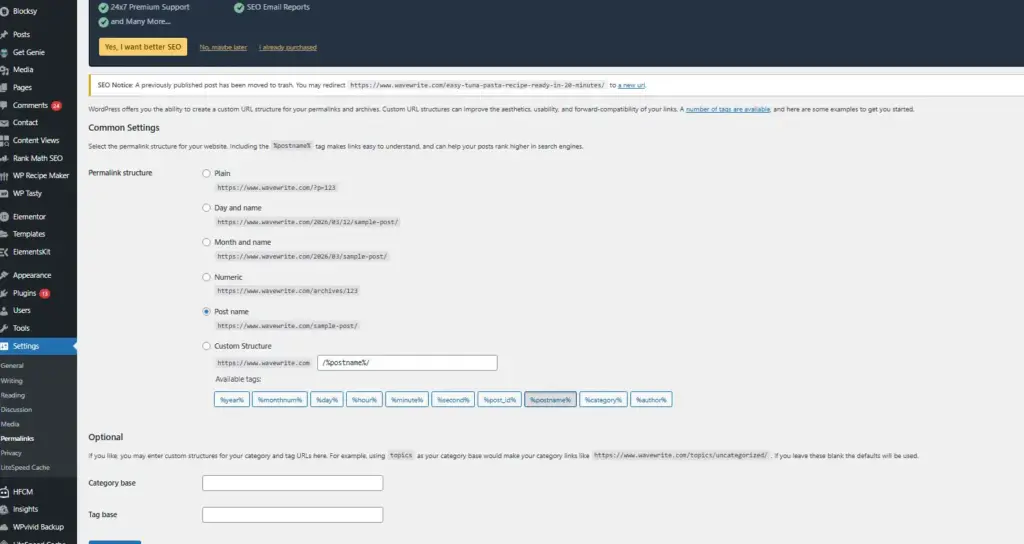
To change the permalink structure in WordPress:
- Go to your WordPress dashboard
- Open Settings > Permalinks
- Choose your preferred structure
- Click Save Changes
That is all it takes technically, but the SEO side matters too.
If your site is new and has little or no traffic, changing permalinks is usually low-risk. If your site has been live for a while, you should set up 301 redirects from the old URLs to the new ones immediately.
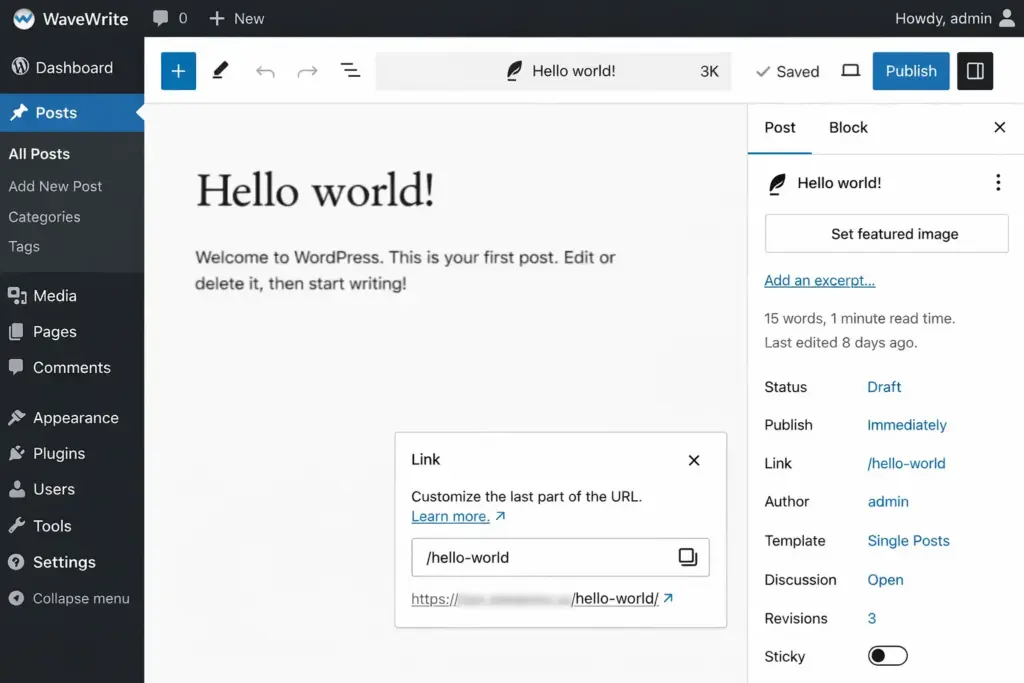
How to Edit Individual Post Slugs
You do not always need to change your whole site structure. Sometimes you only need to improve a single URL.
WordPress lets you edit the slug for each post or page directly inside the editor. This is useful when:
- The title is too long
- The URL includes unnecessary words
- You want a cleaner keyword focus
- The original slug is unclear
For example, instead of using:
how-to-make-your-wordpress-website-load-faster-in-2026
you could shorten it to:
wordpress-speed-tips
That is cleaner, easier to read, and still clear enough for SEO.
A good slug is usually short, descriptive, and focused on the main topic.
Best Practices for Writing SEO-Friendly Slugs
A strong slug should be simple and natural. You do not need to force every keyword into it.
Here are some useful guidelines:
- Keep it short
- Use 3 to 5 meaningful words when possible
- Remove filler words like “the,” “a,” and “and”
- Use lowercase letters
- Separate words with hyphens
- Avoid strange characters or unnecessary dates
Here is a quick example:
| Weak Slug | Better Slug |
|---|---|
how-to-learn-about-wordpress-seo-in-a-simple-way | wordpress-seo-guide |
the-best-tips-and-tricks-for-improving-site-speed | site-speed-tips |
The goal is clarity, not keyword stuffing.
Customizing Category and Tag Bases
WordPress also lets you change the base used for category and tag archive URLs.
By default, category URLs look like this:
yoursite.com/category/seo/
And tag URLs look like this:
yoursite.com/tag/wordpress/
You can customize these bases in the same permalink settings screen.
For example, a recipe blog might prefer:
yoursite.com/recipes/desserts/
instead of:
yoursite.com/category/desserts/
This can make URLs feel more aligned with your brand and content style.
Still, remember that changing category or tag bases on an existing site also changes those archive URLs, so redirects are important there too.
WooCommerce Permalink Settings for Online Stores
If you run an online store with WooCommerce, permalink structure becomes even more important. Product URLs affect SEO, navigation, and the shopping experience.
WooCommerce gives you several product permalink options.
These typically include:
- Default structure
- Shop base
- Shop base with category
- Custom base
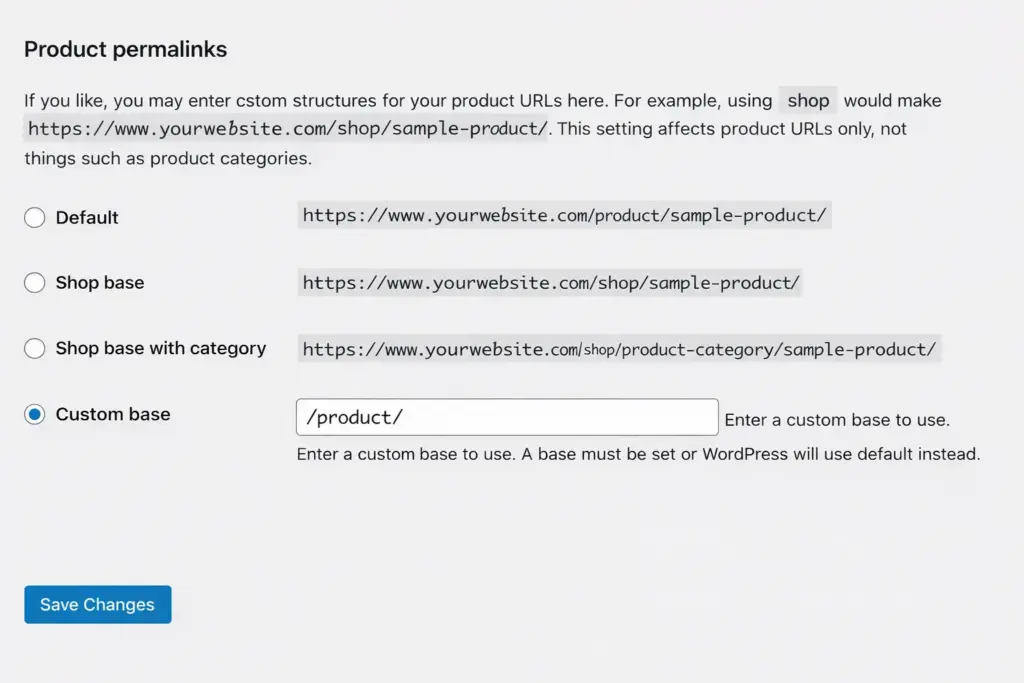
Examples:
| Option | Example |
|---|---|
| Shop base | yoursite.com/product/red-sneakers/ |
| Shop base with category | yoursite.com/product/shoes/red-sneakers/ |
| Custom base | yoursite.com/store/red-sneakers/ |
For many stores, using the shop base with category makes sense because it creates a more organized structure. It helps both customers and search engines understand how products are grouped.
A product URL like:
yoursite.com/product/electronics/wireless-headphones/
is much more informative than a random product ID.
You should also review product category and tag bases to keep your store structure clean and consistent.
Advanced Ways to Change Permalinks
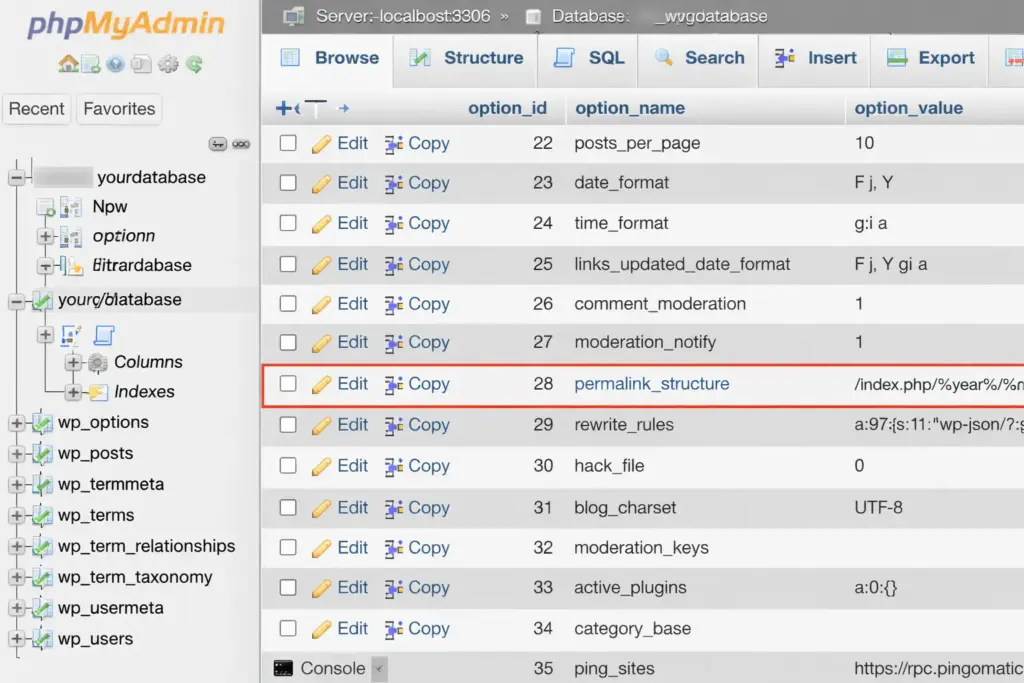
Most users should change permalinks through the WordPress dashboard. That is the safest and easiest method.
However, advanced users sometimes update permalink settings through the database or with WP-CLI.
Database Changes
The permalink structure is stored in the WordPress options table. It can be edited directly through phpMyAdmin or MySQL, but this method should only be used if you know exactly what you are doing.
Direct database edits skip WordPress safety checks, which means mistakes can break your site.
WP-CLI
If you manage WordPress from the command line, WP-CLI offers a more reliable advanced method.
For example, you can update the permalink structure with a command like:
wp rewrite structure '/%postname%/'
This is useful for developers, staging environments, or multi-site management, but it is not necessary for most site owners.
Useful Plugins for Permalinks and Redirects
If you want more control over your URLs, or you need to handle redirects after making changes, a plugin can help.
Here are some common types of permalink-related plugins:
| Plugin Type | Main Use |
|---|---|
| Redirection plugins | Create 301 redirects from old URLs to new ones |
| Custom permalink plugins | Set special URLs for individual posts or terms |
| SEO plugins | Help manage technical SEO and related settings |
A redirect plugin is especially important if you are changing URLs on an established site. Without redirects, visitors and search engines may hit 404 errors instead of reaching the correct content.
For larger websites, bulk URL management tools can save a lot of time when reorganizing content.
SEO Best Practices for WordPress Permalinks
There is no perfect permalink structure for every website, but there are a few principles that work well almost everywhere.
Keep URLs Clean and Readable
Short, descriptive links perform better than long and cluttered ones. They look more trustworthy and are easier to understand.
Use Keywords Naturally
If your page targets a clear topic, include that topic in the slug in a natural way. Do not force awkward wording just to add extra keywords.
Avoid Dates Unless They Truly Matter
If your content is not time-sensitive, dates usually add no value. They can make evergreen posts look outdated even when the information is still useful.
Think Long-Term
Choose a permalink structure that will still make sense as your website grows. Constantly changing URLs later can create unnecessary SEO problems.
Stay Consistent
A consistent URL structure makes your site easier to manage and easier for users to navigate.
Common Permalink Problems and How to Fix Them
Sometimes permalink changes do not work smoothly right away. The good news is that most issues are easy to fix.
Problem: Pages Start Showing 404 Errors
This usually happens when WordPress rewrite rules need to refresh.
Fix:
Go to Settings > Permalinks and click Save Changes again without changing anything.
Problem: Old URLs Still Appear
This can happen because of caching.
Fix:
Clear your WordPress cache, browser cache, server cache, and CDN cache if you use one.
Problem: Redirects Are Missing
If old URLs no longer work after a structure change, visitors may land on broken pages.
Fix:
Set up 301 redirects from the old URLs to the new ones.
Problem: Plugin Conflicts
SEO plugins, caching tools, and custom permalink plugins can sometimes interfere with URL behavior.
Fix:
Temporarily deactivate plugins one by one and test your permalinks again.
Here is a quick troubleshooting table:
| Problem | Likely Cause | Solution |
|---|---|---|
| 404 errors after change | Rewrite rules not refreshed | Save permalink settings again |
| Old URLs still loading strangely | Cache issue | Clear all caches |
| Traffic drops after structure change | Missing redirects | Add 301 redirects |
| URL behavior becomes inconsistent | Plugin conflict | Test by disabling plugins |
When You Should Avoid Changing Permalinks
Permalink settings are important, but changing them too often is not a good idea.
If your website is already established, indexed, and receiving traffic, you should only change permalinks when there is a clear reason, such as:
- Moving from ugly default URLs to clean URLs
- Fixing a poor structure from an old setup
- Reorganizing a large content section properly
- Improving store product URLs in a planned way
Frequent URL changes can confuse search engines, create redirect chains, and lead to broken links if not managed carefully.
In most cases, it is better to choose a strong permalink structure early and stick with it.
Final Thoughts
WordPress permalinks may look like a small setting, but they shape the way your website is understood by both visitors and search engines. Clean, readable URLs help build trust, improve navigation, and support better SEO over time.
For most websites, the Post Name structure is the best choice because it keeps URLs simple and focused on the content. If you run a WooCommerce store or a large content site, a slightly more structured setup may make sense, but the same principle still applies: keep URLs clear, useful, and easy to manage.
The most important thing is not just choosing a good structure, but choosing one you can keep for the long term. A stable permalink system makes your site easier to grow, easier to optimize, and far less likely to run into avoidable SEO issues later.