Follow Me On Social Media!


Look, if you’re running a WordPress site for Arabic, Hebrew, Persian, or Urdu speakers, you’ve probably already seen what happens when RTL support goes wrong. Text flying all over the place, menus pointing the wrong way, sidebars crashing into content like an uninvited guest. It’s not a great look — and your visitors will bounce before you can say “right-to-left.”
Here’s the thing though: fixing this isn’t nearly as scary as it sounds. You don’t need to be some kind of coding wizard. You just need to know where to look and what to do — which is exactly what this guide is for. Let’s walk through it together, step by step.
So… What Even Is RTL in WordPress?
WordPress is actually pretty smart about RTL languages — it knows they exist and has some built-in awareness. The catch? Your theme and plugins still need to pull their own weight. RTL in WordPress basically comes down to four things:
- Your theme — does it have a special
rtl.cssfile? (More on this in a sec) - Your CSS — are your styles flipped correctly for RTL readers?
- Your plugins — do they behave themselves in an RTL setup?
- Your content — is everything actually aligned the way it should be?
Nail all four and your Arabic or Hebrew visitors will feel right at home. Miss one and… well, you’ll know. Trust me.
Step 1: First Things First — Does Your Theme Already Handle RTL?
Before you go diving into code, take a breath and check if your theme already does the heavy lifting for you. Lots of premium themes (and honestly quite a few solid free ones too) come with RTL support built right in.
Check the Docs (Yes, Actually Read Them)
I know, I know — nobody reads documentation. But in this case, it’s genuinely the fastest way to find out. Theme developers usually mention RTL support pretty clearly if they’ve got it. If you search the page and find nothing? That’s your answer right there.
Hunt for the rtl.css File
RTL-friendly themes include a file called rtl.css. To check if yours has one:
- Head to Appearance → Theme Editor in your dashboard
- Look for
rtl.cssin the theme’s root folder
Found it? You’re probably in great shape. Nothing there? You’ll need to make one yourself — don’t worry, we’re getting to that.
Just… Switch Languages and See What Happens
Honestly the most satisfying test. Go to Settings → General, change the Site Language to Arabic or Hebrew, save it, and reload your site. If everything flips and mirrors nicely — amazing, crack open a celebratory snack. If it looks like your layout had a small breakdown — time to roll up your sleeves.
Step 2: Set Up a Child Theme (Seriously, Don’t Skip This)
Okay this one isn’t optional. If you edit your parent theme directly and then update it later, everything you did gets deleted. Just gone. Don’t let that happen to you.
A child theme is basically a safe little sandbox for your changes. Here’s how to make one:
- Create a new folder in
wp-content/themes/— call it something likeyourtheme-child - Add a
style.cssfile with this at the top:
/*
Theme Name: YourTheme Child
Template: yourtheme
*/
- Create a
functions.phpfile and drop this in:
<?php
function child_theme_enqueue_styles() {
    wp_enqueue_style('parent-style', get_template_directory_uri() . '/style.css');
}
add_action('wp_enqueue_scripts', 'child_theme_enqueue_styles');
?>
- Go to Appearance → Themes and activate your child theme
That’s it! Now you can make all the changes you want without living in fear of the next update nuking your work.
Step 3: Build Your RTL Stylesheet
Here’s where things actually get interesting. Your rtl.css file is the magic ingredient that tells WordPress “hey, flip everything around for RTL readers.”
Start by duplicating your theme’s style.css and renaming the copy rtl.css. Then go through and adjust anything that needs mirroring. Here’s what that looks like in practice:
body {
  direction: rtl;
  unicode-bidi: embed;
}

.text-align-left {
  text-align: right;
}

.margin-left-20 {
  margin-right: 20px;
  margin-left: 0;
}
Little tip that’ll save you a headache: Look into CSS logical properties like margin-inline-start and margin-inline-end. Instead of writing separate rules for LTR and RTL, these automatically adjust based on text direction. Future-you will be very grateful.
Step 4: Make WordPress Actually Load the RTL Stylesheet
Creating the file is the fun part. Making sure WordPress uses it is the important part. Pop this into your child theme’s functions.php:
function enqueue_rtl_styles() {
    if (is_rtl()) {
        wp_enqueue_style('rtl-styles', get_template_directory_uri() . '/rtl.css');
    }
}
add_action('wp_enqueue_scripts', 'enqueue_rtl_styles');
The is_rtl() bit is clever — it means the stylesheet only loads when you’re actually running an RTL language. No unnecessary bloat, no wasted requests. Nice and clean.
Step 5: Walk Through Your Site and Fix the Awkward Bits
Now comes the fun detective work. Once your stylesheet is set up, browse around your site with fresh eyes and look for anything that’s off. Common culprits include:
- Navigation menus — are they sitting where they should?
- Icons and arrows — directional ones often need flipping. The CSS trick
transform: scaleX(-1);will mirror them for you - Forms and buttons — labels on the right side? Inputs positioned correctly?
- Sidebars — should be on the opposite side in RTL
Don’t just trust automated checks here. A real human eyeballing the layout — especially someone who actually reads the language — will catch things that code simply can’t.
Step 6: Don’t Forget About Your Plugins (They Can Be Sneaky)
Here’s something people miss all the time: you can have a beautifully RTL-ready theme and then one plugin just… blows up the whole layout. It happens more often than you’d think.
Check the plugin’s documentation first — look for any mention of RTL support on their WordPress.org page or their site. If there’s nothing about it, test it manually after switching languages.
If a plugin doesn’t play nice, you can write custom CSS overrides in your rtl.css file to fix it. Or grab a plugin like Simple Custom CSS and JS to add styles without touching any files directly.
And please — never edit plugin files directly. The second you update that plugin, your changes are gone. It’s a trap that catches everyone at least once.
Step 7: Translate Your Actual Content
RTL layout is only half the picture. The words on your site need to actually be in the right language too. Doing all of this by hand is a nightmare (and incredibly expensive at scale), so here are the tools most people lean on:
For translating content:
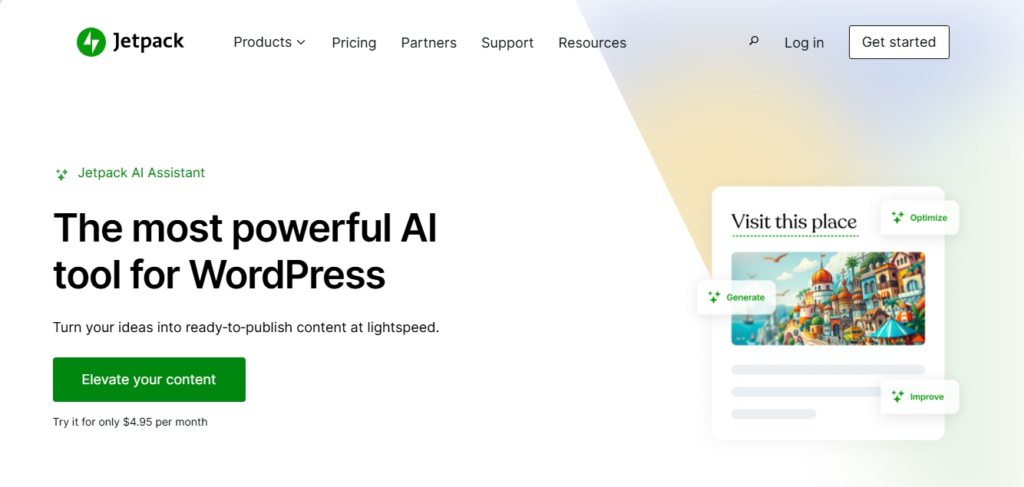
- Jetpack AI Assistant — AI-powered translation right inside the WordPress editor. Fast, accurate, and genuinely useful for RTL content
- Polylang — Free, popular, solid RTL support. You provide the translations; it handles the language switching
- GTranslate — Powered by Google Translate for fully automatic machine translation
For translating theme and plugin strings (yes, those need translating too):
- Loco Translate — Manage
.poand.molanguage files straight from your dashboard. Works with DeepL, Google, Microsoft AI, and more. Great if the idea of command-line tools makes you nervous - Poedit — A desktop app if you’d rather not add another plugin. Available for Mac, Windows, and Linux
Step 8: Test It Like You Mean It
Don’t just flip the language switch, glance at your homepage, and call it a day. Real testing takes a bit more effort — but it’s absolutely worth it.
Check different screen sizes. Mobile layouts have their own RTL quirks. Use your browser’s dev tools or a free tool like Viewport Resizer to see how things look at different widths.
Test across browsers. At minimum, hit these:
- Google Chrome
- Safari
- Microsoft Edge
- Mozilla Firefox
- Samsung Internet (especially key for mobile Arabic readers)
Get a native speaker to look at it. This is the big one, and it’s almost always skipped. A native Arabic or Hebrew speaker will spot things that feel “off” even when everything looks technically correct. Cultural nuance, unnatural phrasing, weird layout choices — these things only stand out to someone who actually reads the language. Platforms like Upwork make it easy to find someone for a quick review.
Step 9: Keep It Working Over Time
Here’s the part nobody really talks about: RTL support isn’t something you set up once and forget. Themes and plugins update all the time, and those updates can quietly break things.
Turn on automatic updates where you can. For anything that needs manual updating, schedule a regular check — even just once a month.
After major updates, do a quick visual check of your RTL layout. Tools like VRTs – Visual Regression Tests or WP Boom can flag layout shifts automatically, but they’re not foolproof. A quick manual browse is still worth doing.
Stay plugged into the WordPress community. Follow Make WordPress for development updates and hang out in WordPress forums and communities. RTL best practices do evolve, and it’s helpful to know when something changes.
Quick FAQ: Things People Always Wonder About
Does WordPress support RTL by default?
Sort of! The admin dashboard flips automatically when you set an RTL language. But your public site needs that rtl.css file in the theme to actually display correctly for visitors.
What’s the #1 RTL mistake people make?
Not creating — or properly setting up — the rtl.css file. Close second? Never testing with an actual native speaker.
Could RTL break my site?
It’s possible, especially with older themes. Always test on a staging environment before going live. That way if something explodes, it explodes somewhere no one can see it.
Is RTL good or bad for SEO?
Really good, actually! It helps you reach a massive new audience, and Google rewards better user experience. Just make sure to add hreflang tags so search engines know which version of your page is for which language and region.
Can I just use a plugin instead of all this?
Yep! Plugins like WPML or Polylang can handle a lot of the heavy lifting, especially the language switching. If you’re not a developer and don’t want to become one, this is a totally valid path.
Wrapping Up
Look, adding RTL support to your WordPress site isn’t a weekend-ruining project — it’s a manageable process when you tackle it step by step. And the payoff? You open your site up to hundreds of millions of people who read Arabic, Hebrew, Persian, Urdu, and other RTL languages. That’s not a small thing.
Set up your child theme, build that rtl.css carefully, get a real human to test it, and keep an eye on things after updates. Do those four things and you’ll be way ahead of most sites out there.
Any questions? Weird edge cases giving you trouble? Drop them in the comments — I’m genuinely happy to help figure it out.