Follow Me On Social Media!


Help! My Blog Isn’t Showing Up on WordPress — Here’s How to Fix It
So you just published your blog post. You’re feeling good about it. You maybe even made a cup of tea to celebrate. And then you go to check it out and… it’s just gone. Not on Google, not on your site, nowhere.
Yeah. That’s a special kind of frustrating.
Here’s the thing though — this happens to pretty much everyone at some point, and it’s almost never as catastrophic as it feels. There’s usually a really simple explanation. Let’s go through the most common culprits together, starting with the one that gets people every single time.
Table of Contents
1. You Told WordPress to Hide From Google (Oops)
This is the big one. The embarrassing one. The “I can’t believe it was this” one.
WordPress has a little checkbox buried in your settings that literally tells search engines to stay away from your site. It’s meant for when you’re still building the thing and don’t want Google crawling a half-finished mess. Totally reasonable! Except… a lot of people forget to uncheck it when they go live.
Here’s how to fix it:
- Head to your WordPress dashboard
- Go to Settings → Reading
- Find the checkbox that says “Discourage search engines from indexing this site”
- If it’s checked — uncheck it right now
- Hit Save Changes and breathe
Once you do that, Google can actually find you again. Bonus tip: go submit your sitemap in Google Search Console to speed things up a bit.
2. WordPress Doesn’t Know Which Page Is Your Blog
This one’s a bit like setting up a party and forgetting to tell anyone where it is. Your posts exist — WordPress just has no idea where to put them.
Quick fix:
- Create a blank page and call it “Blog” (or whatever floats your boat)
- Go to Settings → Reading
- Select “A static page” under homepage display
- Set your shiny new Blog page as the “Posts page”
- Save and you’re done
A lot of themes skip this setup entirely, so don’t feel bad if it caught you off guard.
3. Your Permalinks Are Broken
Broken permalinks basically mean your URLs are returning 404 errors — which is WordPress’s way of shrugging and saying “I have no idea what you’re looking for.” Search engines hate that. Visitors hate that. Everyone hates that.
The fix is almost insultingly simple:
- Go to Settings → Permalinks
- Don’t change anything
- Just click Save Changes
That’s genuinely it. That one click flushes the rewrite rules and sorts things out. If you’re on a self-hosted site, also peek at your .htaccess file to make sure WordPress’s rewrite rules are in there.
4. Your Post Is Still a Draft (We’ve All Done It)
Before you spiral into full panic mode, just… check the post status. I’m serious. Sometimes the most obvious thing is the actual answer.
Open the post in your editor and look at the “Status & Visibility” panel on the right side. Does it say Published? Or does it say Draft, Pending Review, or Scheduled?
Scheduled posts are a sneaky one — if your server’s time zone is off, the post might just be sitting there waiting to go live at some weird hour. If that’s happened to you, just open the post, set the date to right now, and update it.
5. You Made It Private or Password Protected
WordPress lets you lock down individual posts, which is handy — until you do it by accident. A Private post is only visible to logged-in admins, and a Password Protected one needs a code to read. So if you’re staring at a blank page wondering where your content went, this might be why.
Fix: Open the post editor, click “Visibility” in the Status & Visibility panel, and switch it back to Public. Then update. Done.
6. Your Category Got Excluded From the Blog
Some themes are a little too clever and let you hide specific categories from showing up on the main blog page. If your post lives in one of those excluded categories, it’ll just quietly disappear from view even though it’s perfectly published.
Check your theme’s Customizer settings for anything about category exclusions. If you’re feeling adventurous, you can also look for a pre_get_posts filter in your theme’s functions.php file. Not a PHP person? Fair enough — grab the Query Monitor plugin and let it do the detective work for you.
7. Your Cache Is Stuck in the Past
Caching plugins are great for speed, but they can be a real pain when you’ve just published something new. Basically, your site is serving up an old saved version of itself, and your brand new post isn’t in it yet.
Easy fixes:
- Go into your caching plugin (WP Rocket, W3 Total Cache, LiteSpeed Cache — whoever you’re using) and hit Clear All Cache
- On managed hosting like WP Engine or Kinsta, there’s usually a cache purge button right in your dashboard
- If you’re not sure if cache is the issue, just temporarily disable the plugin and check
Give it a few minutes after clearing, then reload your blog page.
8. You Never Told Google Your Site Exists
Even if everything’s set up perfectly, Google won’t magically find your posts overnight. You’ve got to help it out by submitting a sitemap.
How to do it:
- Install Yoast SEO or Rank Math — both create your sitemap automatically
- Your sitemap URL will probably be something like
yoursite.com/sitemap_index.xml - Head to Google Search Console → Sitemaps and submit it
- Keep an eye on it for any crawl errors
This also matters a lot if you want AI tools like Google’s AI Overviews or Bing Copilot to surface your content — they work from indexed, well-structured pages, and your sitemap is step one.
9. Your Theme Is Playing Hide and Seek With Your Posts
Sometimes the theme is the troublemaker. Fancy multipurpose themes often have all kinds of display settings, and occasionally they’re set up in a way that just… hides your posts without any obvious reason.
The quickest way to figure this out is to temporarily switch to one of WordPress’s default themes (like Twenty Twenty-Four) and see if your posts magically reappear. If they do, your theme’s definitely the culprit. Dig through its settings or hit up its support forum — you’re not the first person this has happened to.
10. Your robots.txt File Is Blocking Everyone Out
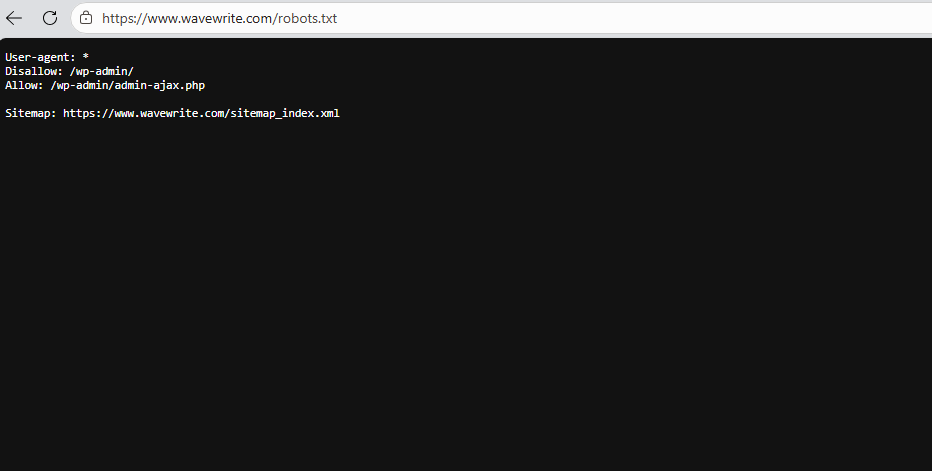
Your robots.txt file is basically a list of instructions for search engine bots — telling them where they can and can’t go on your site. If it’s misconfigured, it can accidentally tell every bot on the internet to stay away entirely.
Check it like this:
- Type
yoursite.com/robots.txtinto your browser - Look for a line that says
Disallow: /— that’s the one that blocks everything - A normal, healthy WordPress robots.txt looks like this:
User-agent: *
Disallow: /wp-admin/
Allow: /wp-admin/admin-ajax.php
Sitemap: https://yoursite.com/sitemap_index.xml
You can edit it through Yoast SEO → Tools → File Editor, or via FTP if you’re comfortable with that.
11. It Might Not Even Be WordPress — Check Your Hosting
Sometimes the problem has nothing to do with WordPress settings at all. A recently moved domain, an expired SSL certificate, or a wonky DNS record can make your whole site effectively invisible.
Quick things to check:
- Use MXToolbox or DNS Checker to make sure your domain is pointing where it should be
- Check that your SSL cert is valid (look for the padlock in your browser)
- If you’ve recently moved hosts or changed nameservers, just call your hosting provider — they deal with this stuff every day
Bonus: Want AI Search Engines to Find You Too?
Here’s something a lot of bloggers aren’t thinking about yet — it’s not just Google you want to show up in anymore. AI tools like ChatGPT, Perplexity, and Google’s AI Overviews are becoming major traffic sources, and getting featured in their answers is the new frontier.
A few things that help:
- Add Schema markup to your posts (Article or BlogPosting schema)
- Put your main answer right at the top of the post — AI models love a direct answer
- Build up your author credibility with a proper bio and credentials
- Keep publishing regularly — fresh content gets picked up faster
Your Quick “Is Everything Broken?” Checklist
Before you do anything else, run through this real quick:
- “Discourage search engines” is unchecked (Settings → Reading)
- Blog page is set as your Posts Page (Settings → Reading)
- Permalinks have been resaved (Settings → Permalinks → Save)
- Post is Published and set to Public
- Cache has been cleared
- Sitemap is submitted to Google Search Console
- robots.txt isn’t blocking crawlers
- Theme isn’t hiding your posts
- Domain and hosting are working fine
You’ve Got This
WordPress can be a bit of a mystery box sometimes, but the good news is that “my blog isn’t showing up” almost always has a fixable answer — and usually a pretty simple one. Start at the top of this list and work your way down. Chances are you’ll find the problem within the first few steps.
And once everything’s working? Keep it going. Publish consistently, get your sitemap sorted, and don’t sleep on those AI search engine opportunities. WordPress is a genuinely brilliant platform when it’s set up right.